


Tags
Paragraphs
The <P> tag in an accessible PDF stands for “Paragraph” and is used in the document’s structure to represent a block of text that is logically grouped together as a paragraph. It is a key element in creating accessible PDFs because it helps screen readers and other assistive technologies understand the content’s structure and provide a better reading experience for users with disabilities.
1. Semantic Structure:
- The <P> tag communicates to assistive technologies that the enclosed content is a paragraph, making it distinct from headings, lists, or other structural elements.
2. Assistive Technology:
- Screen readers interpret <P> tags to announce the text as a coherent paragraph, enabling smooth navigation and comprehension for users.
3. Tag Hierarchy:
- In an accessible PDF, the <P> tag is often nested within other structural tags, such as
<Sect>(for sections), to maintain the document’s logical flow.
4. Best Practices:
- Ensure that every block of text that functions as a paragraph is tagged with <P>.
- Avoid empty <P> tags, as they can confuse assistive technologies.
- Combine proper text formatting with the <P> tag to enhance readability.
5. Testing Accessibility:
- Use tools like Adobe Acrobat’s Accessibility Checker or NVDA/JAWS to ensure the <P> tags are correctly applied and functional.
By using <P> tags properly in an accessible PDF, you enhance its usability and compliance with accessibility standards like WCAG (Web Content Accessibility Guidelines) and PDF/UA (Universal Accessibility)
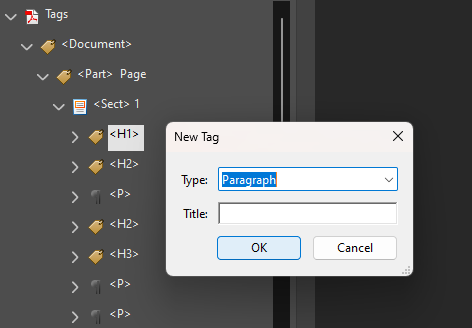
- Right-click on the Document tag
- Select “New Tag”
- Choose “Paragraph”
- Make sure it is nested inside the Document Tag
On this page
Well tagged paragraphs (<P>) ensure smooth reading and logical text flow. Screen readers interpret paragraph tags to provide a clear reading experience, allowing users to navigate line by line or read continuously. Without proper paragraph tagging, content may be read as a single block of text, making it harder to comprehend.
Keyboard Shortcuts
Basic Paragraph Navigation
- Read the next paragraph: Ctrl+Down Arrow
- Read the previous paragraph: Ctrl+Up Arrow
- Read the current paragraph: NVDA+Up Arrow
- Read continuously from the current position: NVDA+Down Arrow
The <P> tag represents a logically grouped block of text. It helps screen readers and assistive technologies understand content structure and deliver a consistent reading experience for users with disabilities.
| Reference | Description | Purpose and Results |
|---|---|---|
| PDF/UA §7.1, EN 301 549 §10.1.3.1 | Paragraphs must be tagged correctly to define blocks of text. | Purpose: Provides clear segmentation of text. Result: Content is easier to read and understand for all users. |
| PDF/UA §7.1, EN 301 549 §10.1.3.2, RAPDF 5.3 | Paragraphs must follow a logical reading order in the document. | Purpose: Ensures assistive technologies read text in the correct sequence. Result: Smooth and consistent reading experience. |
| PDF/UA §7.1, EN 301 549 §10.1.3.1 | Paragraph tags must convey proper semantics to assistive technologies. | Purpose: Allows screen readers to interpret and announce text accurately. Result: Enhances accessibility for visually impaired users. |