


Tags
Document
A document tag is a structural element in the document’s tag tree that helps organize and define the logical structure of a PDF. The tags are organized in a tree-like structure under the <Document> tag, reflecting the logical reading order of the document.
On this page
The <Document> tag serves as the root tag in a tagged PDF, encompassing all the content within the document. It provides a structured framework for screen readers and other assistive technologies to interpret and navigate the document correctly.
Use of the <Document> Tag
- Defines the Document Structure
Acts as the parent container for all content, ensuring proper organization.
- Holds All Other Tags
- Contains sections, headings, paragraphs, tables, lists, and figures, ensuring a logical reading order.
- Supports Navigation
- Helps assistive technologies understand the document hierarchy, improving usability for visually impaired users.
Tip: While manually tagging a PDF document, it is important to ensure that you avoid misclicking on the ‘Autotag Document’ feature. To prevent losing the work, mark the document as a ‘tagged PDF’ beforehand. This ensures manual tagging is preserved, and it won’t be accidentally overwritten with automated tagging.
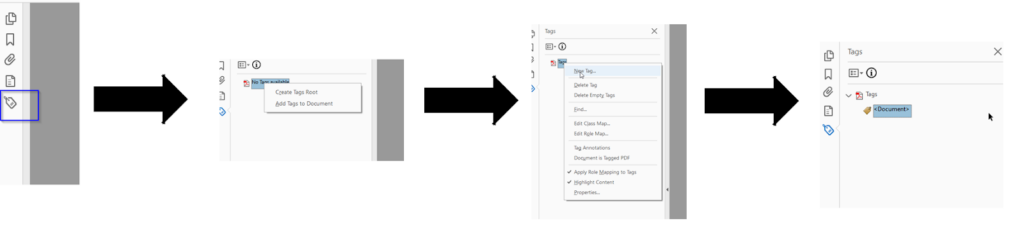
- Create Tag Roots
- Create New Tag
- Select and create the tag – Document in a tree structure
Ensuring the <Document> tag is properly structured is essential for accessibility, usability, and compliance with PDF/UA and WCAG standards. Below are key best practices:
- Ensure all content is nested properly within the <Document> tag. It is important to ensure there is no content outside the <Document> tag, as it may not be read by screen readers.
- Verify the reading order to maintain logical flow.
- The <Document> tag should be the root tag in the Tags panel.
- All elements—headings, paragraphs, lists, tables, figures—must be correctly nested inside it.
- Run accessibility checks (e.g., Acrobat’s Accessibility Checker, PAC 2024) to confirm compliance.