

Nouveau Conception UI/UX
Fil d’Ariane
Un fil d’Ariane est un outil de navigation utilisé dans les interfaces web qui offre aux utilisateurs un chemin clair de leur parcours à travers un site web. Il apparaît généralement comme une rangée horizontale de liens textuels, chaque lien étant séparé par des symboles tels que des signes supérieur à (>), indiquant la hiérarchie du contenu.
Cette fonctionnalité est particulièrement utile sur les sites web comportant plusieurs niveaux d’organisation du contenu, permettant aux utilisateurs de suivre leur position sur le site et de naviguer facilement vers les pages précédentes. Les fils d’Ariane sont particulièrement utiles pour les utilisateurs qui arrivent sur une page via des liens externes ou des résultats de recherche, leur offrant un moyen rapide de comprendre le contexte de la page dans la structure globale du site.
Anatomie
La structure des fils d'Ariane en design UI est simple et directe !
- Origine : Le point de départ du fil d'Ariane
- Niveaux : Les entités intermédiaires entre l'origine et le point actuel
- Délimiteur : Le séparateur qui marque clairement chaque page, objet ou tâche
- Actuel : Le point final ou le dernier élément du fil d'Ariane

Les fils d'Ariane se composent du premier élément (l'origine), des niveaux intermédiaires marqués par des délimiteurs, et du dernier élément, appelé l'élément actuel. En termes de placement, les fils d'Ariane sont généralement situés près du haut d'une page web ou d'une application, proche de l'en-tête ou de la navigation principale. Bien que leur position puisse varier selon les préférences de design et les besoins des utilisateurs, il est généralement préférable de les placer dans un endroit visible et facilement accessible, cohérent sur l'ensemble du site ou de l'application.
Bonnes pratiques de conception pour les Fils d'Ariane
Accessibilité des fils d'Ariane

Les fils d'Ariane jouent un rôle clé dans l'amélioration de l'accessibilité de l'interface, particulièrement pour les utilisateurs de lecteurs d'écran, en offrant une expérience de navigation plus détaillée. Il est donc essentiel de prendre en compte leur ordre de tabulation et leur placement sur la page.
Activez la navigation au clavier en permettant aux utilisateurs de « tabulation » à travers les éléments du fil d'Ariane et d'appuyer sur entrée pour activer un lien. C'est particulièrement bénéfique pour les utilisateurs avancés, comme ceux impliqués dans la saisie de données ou d'autres tâches nécessitant une utilisation intensive du clavier. De plus, si les fils d'Ariane sont mis à jour dynamiquement, ils doivent être annoncés par les lecteurs d'écran, afin que les utilisateurs soient informés de leur position actuelle, de tout changement dans l'itinéraire ou d'autres informations pertinentes.
Modèles de troncature dans les fils d'Ariane

Troncature – Chaque mot

Troncature – Valeurs d'origine et terminales
Troncature – Chaque mot
- Cette approche consiste à tronquer les mots individuels dans le fil d'Ariane au fur et à mesure qu'ils s'allongent. C'est utile lorsque le contexte complet du chemin est important pour que l'utilisateur le voie, mais que les contraintes d'espace nécessitent de raccourcir les étiquettes.
Troncature – Valeurs d'origine et terminales
- Ici, seules les première et dernière parties du chemin du fil d'Ariane sont affichées. Cela aide les utilisateurs à se rappeler où ils ont commencé et où ils sont arrivés. Le nombre de fils d'Ariane affichés à l'extrémité terminale doit dépendre de l'espace disponible à l'écran et de la pertinence des informations.
- Optimisation de l'espace : Avec plusieurs niveaux de navigation, les fils d'Ariane peuvent occuper beaucoup d'espace. Un menu déroulant aide à économiser de l'espace écran tout en donnant accès à tous les niveaux de navigation. Cette méthode est similaire au bouton retour de nombreux navigateurs.
- Meilleure visibilité : Les fils d'Ariane restent visibles dans un format déroulant, même sur les petits écrans ou les appareils avec un espace limité, comme les appareils mobiles.
- Évolutivité : Les menus déroulants sont efficaces pour les structures de navigation complexes, car ils s'adaptent facilement à un nombre croissant de niveaux.
- Accessibilité accrue : Pour les utilisateurs en situation de handicap, un menu déroulant est souvent plus facile à naviguer que le défilement horizontal, améliorant l'accessibilité globale.
Assurer un espacement adéquat entre les liens


Un fil d'Ariane encombré peut nuire à l'utilisabilité, rendant plus difficile pour les utilisateurs de parcourir rapidement les étiquettes et de sélectionner avec précision le lien souhaité. C'est particulièrement important dans la conception mobile, où l'espace d'écran limité et la précision du toucher sont des facteurs cruciaux.
Pour améliorer l'expérience utilisateur, assurez-vous qu'il y a suffisamment d'espace autour de chaque lien du fil d'Ariane. Cet espace supplémentaire améliore la lisibilité et la facilité de navigation. De plus, sur les appareils mobiles, la zone de touche de chaque lien doit être d'au moins 44 x 44px, ce qui est considéré comme une taille confortable pour la navigation au bout du doigt, réduisant la probabilité de touches accidentelles.
Marquer la page d'accueil comme premier fil d'Ariane


Dans la navigation par fil d'Ariane, la page d'accueil sert généralement de point de départ, représentant le cœur de la structure du site web. Inclure le lien vers la page d'accueil comme une étiquette « Accueil » ou le nom de l'entreprise, comme eBay au début du fil d'Ariane permet aux utilisateurs de retourner facilement à la page principale. C'est particulièrement utile s'ils veulent réinitialiser leur navigation ou se sentent perdus dans la hiérarchie du site.
Garder le style des fils d'Ariane simple


Les fils d'Ariane sont un outil de navigation secondaire et doivent être conçus pour s'intégrer harmonieusement dans la page web. Ils ne sont pas destinés à être le point focal de la page, il est donc préférable d'éviter d'utiliser des couleurs en gras ou à fort contraste qui pourraient distraire les utilisateurs de la navigation principale et du contenu.
Il est également important de suivre les directives d'accessibilité, comme les Directives pour l'accessibilité du contenu web (WCAG), qui incluent des exigences de contraste des couleurs. Celles-ci garantissent que le contenu reste accessible à tous les utilisateurs, y compris ceux souffrant de déficiences visuelles.
Aligner les fils d'Ariane à gauche pour faciliter la lecture
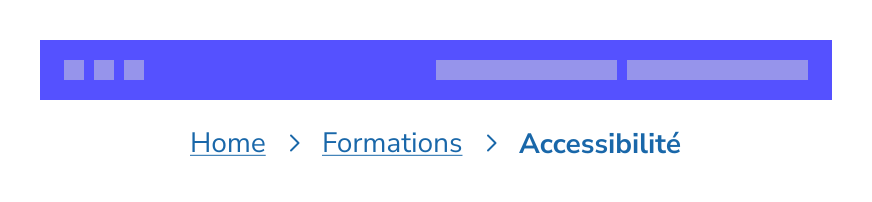
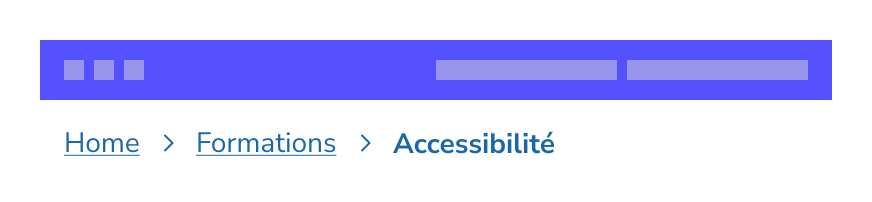
Pour les sites web ciblant des publics lisant de gauche à droite, les fils d'Ariane doivent être alignés à gauche. Cela correspond au flux de lecture naturel, le rendant intuitif et facile à suivre pour les utilisateurs.
En revanche, pour les sites web destinés aux publics lisant de droite à gauche, comme ceux en arabe ou en hébreu, aligner les fils d'Ariane à droite est plus logique.
Les fils d'Ariane alignés au centre peuvent sembler déplacés et peuvent perturber la lisibilité et le flux de la page. La cohérence d'alignement est importante si le design global du site aligne les éléments à gauche, les fils d'Ariane doivent suivre cette convention pour maintenir un design unifié et cohérent.
Quand utiliser le Fil d'Ariane ?
Ne pas utiliser les fils d'Ariane comme remplacement de la navigation globale
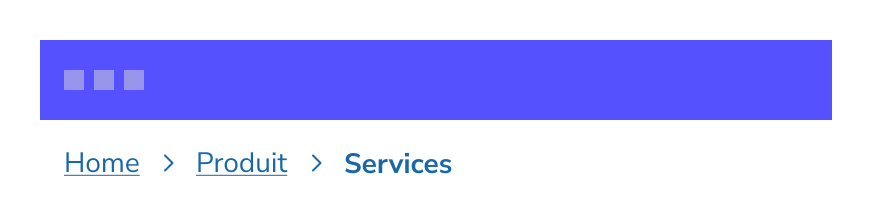

Les fils d'Ariane ne doivent pas remplacer la navigation globale ; ils servent plutôt d'outil complémentaire pour aider les utilisateurs à comprendre leur position sur un site web et à naviguer facilement vers les pages précédemment visitées.
La navigation globale, en revanche, est le principal moyen pour les utilisateurs de naviguer sur un site web. Elle inclut généralement des éléments de menu clés reliant les principales sections du site, offrant un accès direct à ces zones depuis n'importe quel endroit du site.
Bien que les fils d'Ariane aident les utilisateurs en montrant leur chemin de navigation, la navigation globale offre une vue d'ensemble plus large du contenu du site web. Les deux éléments doivent travailler ensemble dans la conception d'un site web, chacun remplissant son propre rôle pour créer une expérience fluide et conviviale.
Utiliser le fil d'Ariane pour afficher la hiérarchie


Les fils d'Ariane doivent être utilisés pour représenter la hiérarchie du site, et non l'historique de navigation de l'utilisateur.
Dans la conception web, les fils d'Ariane sont destinés à refléter la structure du site web plutôt qu'un enregistrement des pages visitées par les utilisateurs. Leur objectif est d'afficher les niveaux de la hiérarchie du site que l'utilisateur a navigués, similaire à une carte montrant les voies principales plutôt que chaque étape du chemin. Inclure toutes les pages visitées par un utilisateur peut encombrer le fil d'Ariane et le rendre visuellement écrasant.
De plus, les fils d'Ariane ne doivent inclure que les niveaux clés du site, comme les sections principales ou les catégories (pages ancêtres). Si une sous-catégorie ou un élément n'a pas sa propre page, il ne doit pas apparaître dans le fil d'Ariane. Cela garantit que les fils d'Ariane restent concentrés et utiles, permettant aux utilisateurs de comprendre facilement leur position dans la structure du site sans complexité inutile.
Utiliser un seul fil d'Ariane sur mobile
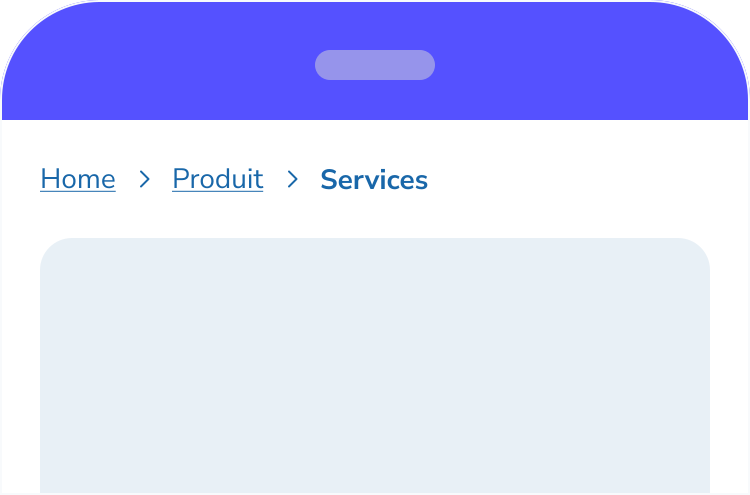
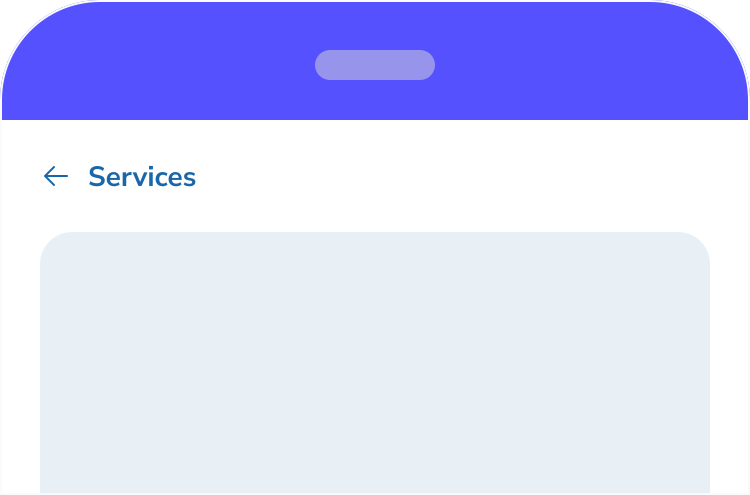
Sur les appareils mobiles, il est crucial d'optimiser l'espace écran tout en maintenant une navigation claire. Une bonne pratique pour les fils d'Ariane sur mobile est d'afficher uniquement un seul fil d'Ariane reliant au niveau parent. Cela maintient l'interface simple et épurée. Par exemple, sur un site e-commerce, si un utilisateur arrive sur une page produit spécifique, un fil d'Ariane reliant à la catégorie parente lui permet de parcourir facilement d'autres produits dans la même catégorie, comme comparer des robes, sans encombrer l'écran avec un long fil d'Ariane.
Cette approche aide à éviter l'encombrement et économise un espace écran précieux, garantissant une interface propre et conviviale. Cependant, cela doit être limité aux appareils mobiles. Sur les versions bureau, où il y a plus d'espace disponible, afficher le fil d'Ariane complet offre une expérience de navigation plus complète.
New Conception UI/UX
Un fil d'Ariane est un outil de navigation utilisé dans les interfaces web qui offre aux utilisateurs un chemin clair de leur parcours à travers un site web. Il apparaît généralement comme une rangée horizontale de liens textuels, chaque lien étant séparé par des symboles tels que des signes supérieur à (>), indiquant la hiérarchie du contenu.
Cette fonctionnalité est particulièrement utile sur les sites web comportant plusieurs niveaux d'organisation du contenu, permettant aux utilisateurs de suivre leur position sur le site et de naviguer facilement vers les pages précédentes. Les fils d'Ariane sont particulièrement utiles pour les utilisateurs qui arrivent sur une page via des liens externes ou des résultats de recherche, leur offrant un moyen rapide de comprendre le contexte de la page dans la structure globale du site.
La structure des fils d'Ariane en design UI est simple et directe !
- Origine : Le point de départ du fil d'Ariane
- Niveaux : Les entités intermédiaires entre l'origine et le point actuel
- Délimiteur : Le séparateur qui marque clairement chaque page, objet ou tâche
- Actuel : Le point final ou le dernier élément du fil d'Ariane
Les fils d'Ariane se composent du premier élément (l'origine), des niveaux intermédiaires marqués par des délimiteurs, et du dernier élément, appelé l'élément actuel. En termes de placement, les fils d'Ariane sont généralement situés près du haut d'une page web ou d'une application, proche de l'en-tête ou de la navigation principale. Bien que leur position puisse varier selon les préférences de design et les besoins des utilisateurs, il est généralement préférable de les placer dans un endroit visible et facilement accessible, cohérent sur l'ensemble du site ou de l'application.
Accessibilité des fils d'Ariane
Les fils d'Ariane jouent un rôle clé dans l'amélioration de l'accessibilité de l'interface, particulièrement pour les utilisateurs de lecteurs d'écran, en offrant une expérience de navigation plus détaillée. Il est donc essentiel de prendre en compte leur ordre de tabulation et leur placement sur la page.
Activez la navigation au clavier en permettant aux utilisateurs de « tabulation » à travers les éléments du fil d'Ariane et d'appuyer sur entrée pour activer un lien. C'est particulièrement bénéfique pour les utilisateurs avancés, comme ceux impliqués dans la saisie de données ou d'autres tâches nécessitant une utilisation intensive du clavier. De plus, si les fils d'Ariane sont mis à jour dynamiquement, ils doivent être annoncés par les lecteurs d'écran, afin que les utilisateurs soient informés de leur position actuelle, de tout changement dans l'itinéraire ou d'autres informations pertinentes.
Modèles de troncature dans les fils d'Ariane
Troncature – Chaque mot
Troncature – Valeurs d'origine et terminales
Troncature – Chaque mot
- Cette approche consiste à tronquer les mots individuels dans le fil d'Ariane au fur et à mesure qu'ils s'allongent. C'est utile lorsque le contexte complet du chemin est important pour que l'utilisateur le voie, mais que les contraintes d'espace nécessitent de raccourcir les étiquettes.
Troncature – Valeurs d'origine et terminales
- Ici, seules les première et dernière parties du chemin du fil d'Ariane sont affichées. Cela aide les utilisateurs à se rappeler où ils ont commencé et où ils sont arrivés. Le nombre de fils d'Ariane affichés à l'extrémité terminale doit dépendre de l'espace disponible à l'écran et de la pertinence des informations.
- Optimisation de l'espace : Avec plusieurs niveaux de navigation, les fils d'Ariane peuvent occuper beaucoup d'espace. Un menu déroulant aide à économiser de l'espace écran tout en donnant accès à tous les niveaux de navigation. Cette méthode est similaire au bouton retour de nombreux navigateurs.
- Meilleure visibilité : Les fils d'Ariane restent visibles dans un format déroulant, même sur les petits écrans ou les appareils avec un espace limité, comme les appareils mobiles.
- Évolutivité : Les menus déroulants sont efficaces pour les structures de navigation complexes, car ils s'adaptent facilement à un nombre croissant de niveaux.
- Accessibilité accrue : Pour les utilisateurs en situation de handicap, un menu déroulant est souvent plus facile à naviguer que le défilement horizontal, améliorant l'accessibilité globale.
Assurer un espacement adéquat entre les liens
Un fil d'Ariane encombré peut nuire à l'utilisabilité, rendant plus difficile pour les utilisateurs de parcourir rapidement les étiquettes et de sélectionner avec précision le lien souhaité. C'est particulièrement important dans la conception mobile, où l'espace d'écran limité et la précision du toucher sont des facteurs cruciaux.
Pour améliorer l'expérience utilisateur, assurez-vous qu'il y a suffisamment d'espace autour de chaque lien du fil d'Ariane. Cet espace supplémentaire améliore la lisibilité et la facilité de navigation. De plus, sur les appareils mobiles, la zone de touche de chaque lien doit être d'au moins 44 x 44px, ce qui est considéré comme une taille confortable pour la navigation au bout du doigt, réduisant la probabilité de touches accidentelles.
Marquer la page d'accueil comme premier fil d'Ariane
Dans la navigation par fil d'Ariane, la page d'accueil sert généralement de point de départ, représentant le cœur de la structure du site web. Inclure le lien vers la page d'accueil comme une étiquette « Accueil » ou le nom de l'entreprise, comme eBay au début du fil d'Ariane permet aux utilisateurs de retourner facilement à la page principale. C'est particulièrement utile s'ils veulent réinitialiser leur navigation ou se sentent perdus dans la hiérarchie du site.
Garder le style des fils d'Ariane simple
Les fils d'Ariane sont un outil de navigation secondaire et doivent être conçus pour s'intégrer harmonieusement dans la page web. Ils ne sont pas destinés à être le point focal de la page, il est donc préférable d'éviter d'utiliser des couleurs en gras ou à fort contraste qui pourraient distraire les utilisateurs de la navigation principale et du contenu.
Il est également important de suivre les directives d'accessibilité, comme les Directives pour l'accessibilité du contenu web (WCAG), qui incluent des exigences de contraste des couleurs. Celles-ci garantissent que le contenu reste accessible à tous les utilisateurs, y compris ceux souffrant de déficiences visuelles.
Aligner les fils d'Ariane à gauche pour faciliter la lecture
Pour les sites web ciblant des publics lisant de gauche à droite, les fils d'Ariane doivent être alignés à gauche. Cela correspond au flux de lecture naturel, le rendant intuitif et facile à suivre pour les utilisateurs.
En revanche, pour les sites web destinés aux publics lisant de droite à gauche, comme ceux en arabe ou en hébreu, aligner les fils d'Ariane à droite est plus logique.
Les fils d'Ariane alignés au centre peuvent sembler déplacés et peuvent perturber la lisibilité et le flux de la page. La cohérence d'alignement est importante si le design global du site aligne les éléments à gauche, les fils d'Ariane doivent suivre cette convention pour maintenir un design unifié et cohérent.
Ne pas utiliser les fils d'Ariane comme remplacement de la navigation globale
Les fils d'Ariane ne doivent pas remplacer la navigation globale ; ils servent plutôt d'outil complémentaire pour aider les utilisateurs à comprendre leur position sur un site web et à naviguer facilement vers les pages précédemment visitées.
La navigation globale, en revanche, est le principal moyen pour les utilisateurs de naviguer sur un site web. Elle inclut généralement des éléments de menu clés reliant les principales sections du site, offrant un accès direct à ces zones depuis n'importe quel endroit du site.
Bien que les fils d'Ariane aident les utilisateurs en montrant leur chemin de navigation, la navigation globale offre une vue d'ensemble plus large du contenu du site web. Les deux éléments doivent travailler ensemble dans la conception d'un site web, chacun remplissant son propre rôle pour créer une expérience fluide et conviviale.
Utiliser le fil d'Ariane pour afficher la hiérarchie
Les fils d'Ariane doivent être utilisés pour représenter la hiérarchie du site, et non l'historique de navigation de l'utilisateur.
Dans la conception web, les fils d'Ariane sont destinés à refléter la structure du site web plutôt qu'un enregistrement des pages visitées par les utilisateurs. Leur objectif est d'afficher les niveaux de la hiérarchie du site que l'utilisateur a navigués, similaire à une carte montrant les voies principales plutôt que chaque étape du chemin. Inclure toutes les pages visitées par un utilisateur peut encombrer le fil d'Ariane et le rendre visuellement écrasant.
De plus, les fils d'Ariane ne doivent inclure que les niveaux clés du site, comme les sections principales ou les catégories (pages ancêtres). Si une sous-catégorie ou un élément n'a pas sa propre page, il ne doit pas apparaître dans le fil d'Ariane. Cela garantit que les fils d'Ariane restent concentrés et utiles, permettant aux utilisateurs de comprendre facilement leur position dans la structure du site sans complexité inutile.
Utiliser un seul fil d'Ariane sur mobile
Sur les appareils mobiles, il est crucial d'optimiser l'espace écran tout en maintenant une navigation claire. Une bonne pratique pour les fils d'Ariane sur mobile est d'afficher uniquement un seul fil d'Ariane reliant au niveau parent. Cela maintient l'interface simple et épurée. Par exemple, sur un site e-commerce, si un utilisateur arrive sur une page produit spécifique, un fil d'Ariane reliant à la catégorie parente lui permet de parcourir facilement d'autres produits dans la même catégorie, comme comparer des robes, sans encombrer l'écran avec un long fil d'Ariane.
Cette approche aide à éviter l'encombrement et économise un espace écran précieux, garantissant une interface propre et conviviale. Cependant, cela doit être limité aux appareils mobiles. Sur les versions bureau, où il y a plus d'espace disponible, afficher le fil d'Ariane complet offre une expérience de navigation plus complète.