

PDF Accessibility
Tagging Evaluation
Before tagging a document, it is essential to evaluate and prepare the PDF to ensure it can be made accessible. This process involves several key steps, including checking the document’s content. Proper preparation helps streamline the tagging process and ensures that the final document meets accessibility standards.
What are XObjects?
XObjects in PDFs are reusable graphical objects that allow for efficient rendering and storage. They include Form XObjects (vector graphics, text, or images) and Image XObjects (bitmap images). XObjects are defined once and can be referenced multiple times within the PDF, reducing file size and ensuring consistent visual representation. They are particularly useful for complex layouts, repeating elements, and incorporating external content.
When creating an accessible document, XObjects can present significant challenges, as the content within them is often grouped together as a single element, making tagging difficult. Below are some solutions to address these issues:
How to tag xObject figures & images
Tagging xObject elements can cause multiple issues such as Syntax errors, visual erros or PAC issues. To avoid those kind of problems some work can be done inside the content panel.
- Identify the Relevant xObject
- Locate the xObject element that’s causing issues. It’s important to isolate the specific item to avoid unintended changes to other parts of the PDF.
- Wrap the xObject in an "Artifact" Tag
- Create an Artifact container to safely isolate the xObject:
- Right-click on any tag in the Tags panel
- Select New Container & Enter
"Artifact"as the tag type - Note: The new Artifact tag will initially appear as a child of the tag you clicked. Drag it out to a suitable position in the tag tree.
- Then, move the identified xObject element into the newly created Artifact tag.
- Select New Container & Enter
- Right-click on any tag in the Tags panel
- Create an Artifact container to safely isolate the xObject:
- Tag or Remove the Element as Needed
- Tag it as needed
- Or delete it directly from the Tags panel
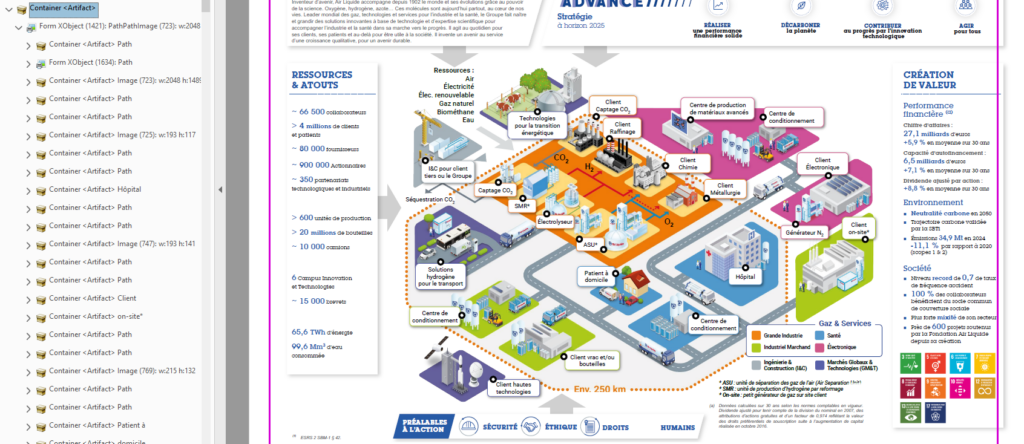
It should look like this
Note :
- Always make sure that the integrity of the document is intact.
- This method might not work for text or table elements. For those types of elements the methods bellow would be more efficient.
- Always check PAC when editing xObjects as they are very specific and volatile.
How to correct.
Converting the document using Distiller
One effective method to address issues with XObjects is to use the distillation process for the PDF. This approach flattens the document's content, ensuring that each element is represented individually rather than being grouped together.
- Export the Document to PostScript
- Open your PDF document in Adobe Acrobat.
- Export to PostScript
- Select File > Export To > PostScript.
- Choose a location to save the PostScript (.ps) file.
- Save the file with a
.psextension.
- Launch Acrobat Distiller
- Set Preferences
- In Acrobat Distiller, go to Edit > Preferences
- Under Adobe PDF Settings, ensure that Embed Fonts is enabled. This ensures that fonts are embedded into the PDF during the conversion process.
- Choose an appropriate Job Option like High Quality Print or Press Quality, depending on the desired output quality.
- Add the PostScript File
- Drag and drop the PostScript (.ps) file you saved earlier into the Acrobat Distiller window, or use File > Open to locate and select the file.
- Verify XObject Fixes
- Open the newly created PDF in Adobe Acrobat Pro.
- Check the document to confirm whether the XObjects have been successfully removed.
Additional Tips
- While this method is an effective way to remove XObjects, it can also have potential drawbacks, particularly affecting the document's visual appearance. Therefore, it is essential to thoroughly review the document to ensure it remains visually intact after processing.
- While distilling a document is highly effective, it can also introduce multiple font encoding issues. When evaluating this method's effectiveness, consider that character encoding can be corrected, but the process should not be overly time-consuming. If there are too many errors requiring extensive manual fixes, it may be more efficient to explore alternative solutions for resolving XObject errors.
Cut and Copy Method
This method involves extracting and reapplying the content contained within the XObject.
Step 1: Open the PDF in Adobe Acrobat Pro
- Launch Adobe Acrobat Pro.
- Open the PDF containing the XObject issues.
Step 2: Select the XObject
- Go to the Edit tool in the toolbar or use the Edit PDF option from the tools panel.
- Click on the XObject or the content you suspect is grouped as an XObject.
Step 3: Cut the XObject
- Right-click on the selected content and choose Cut from the context menu. Alternatively, press Ctrl+X (Windows) or Command+X (Mac).
- The XObject will be removed temporarily and stored in the clipboard.
Step 4: Paste the Content Back
- Right-click in the same location where the XObject was removed and select Paste. Alternatively, press Ctrl+V (Windows) or Command+V (Mac).
- This action reinserts the content as an editable and taggable object rather than a grouped XObject.
Step 5: Verify the Content
- Check the document to ensure the pasted content appears correctly and remains visually intact.
- Use the Accessibility tools in Acrobat to confirm that the content is now selectable and can be tagged properly.
Step 6: Repeat for Other XObjects
- If the document contains multiple XObjects, repeat the process for each problematic element.
Additional Tips
- Always create a backup copy of your original PDF before making changes, as this method alters the structure of the document.
- When pasting the content back into the document, use Acrobat's alignment tools to ensure the content is placed precisely where it was originally.
- After pasting, verify that the new content does not overlap with other elements or cause layout issues.
- Use Acrobat’s Accessibility Check tool to confirm that the newly added content is now taggable and accessible.
- For XObjects containing grouped images or complex layouts, consider breaking them down into smaller sections before reapplying.
- Copy-pasting multiple times may degrade image quality or disrupt formatting. Try to minimize repeated actions.
- If working with a large document, focus on one page or section at a time to maintain control and avoid mistakes.
- After reapplying text content, ensure it is selectable and encoded properly for accessibility purposes.
- Once all changes are made, review the entire document for any unintended visual or structural issues.
What is Character encoding?
Character encoding defines how characters, such as letters, numbers, and symbols, are represented and stored within a PDF. It ensures that text is displayed correctly and can be reliably extracted, searched, or processed. Common encoding standards, like Unicode, support a wide range of characters, while others, such as ASCII, handle basic character sets. Accurate encoding is critical for maintaining accessibility and ensuring seamless text functionality in PDFs.
Causes
Character encoding issues can arise in specific situations, such as:
- Incorrect export settings used when generating the PDF.
- Missing fonts on the system.
- Unembedded Fonts
- Language or Issues
How to correct
Here are some methods to resolve these types of issues:
Preflight tool to repair font issues
The Preflight tool in Adobe Acrobat is used to analyze and validate PDF files for potential issues, such as font problems, color inconsistencies, and file corruption. It provides pre-configured profiles and customizable options to fix various document errors, ensuring compliance with standards like PDF/A and improving document accessibility and print quality.
- Open the PDF in Adobe Acrobat Pro:
- Launch Adobe Acrobat Pro and open the PDF document that has font-related issues.
- Access the Preflight Tool:
- Go to the Tools panel in the upper left corner.
- Scroll down and click on Print Production.
- In the Print Production tools, select Preflight.
- Select Preflight Profile:
- In the Preflight window, you will see a variety of pre-configured profiles.
- To address font issues, expand the PDF/A Compliance or Fonts sections. You can also search for "fonts" in the search bar of the Preflight panel to find specific font-related profiles.
- Run a Font Check:
- If you are troubleshooting missing or unembedded fonts, you can choose the Fonts: Missing or Non-Embedded Fonts profile.
- Select this profile and click on the Analyze button.
- Acrobat will scan the document for any missing or non-embedded fonts.
- Fix Font Issues:
- After the scan is complete, Acrobat will provide a report listing any font issues.
- If fonts are missing or unembedded, you can fix them by selecting the Fix option, which will embed the fonts in the PDF.
- Verify the Fixes:
- Reopen the fixed PDF and check that all fonts are now correctly displayed and embedded. You can also re-run the Preflight tool to confirm that there are no remaining font issues.
Additional Tips
- Font Substitution: If Preflight detects missing fonts, it may substitute them with available system fonts. Ensure that the intended fonts are embedded to maintain the document’s original appearance.
- Using Preflight Profiles: Acrobat provides various profiles for different types of document fixes. You can create custom profiles if you frequently need to address specific issues.
Using the Acrobat Distiller
Acrobat Distiller is a tool in Adobe Acrobat that converts PostScript (.ps) files into PDF documents. It allows users to apply specific settings for output quality, such as font embedding and compression, ensuring that the resulting PDF is properly formatted and maintains the intended appearance.
- Export the Document to PostScript
- Open the Document in Acrobat:
- Open your PDF document in Adobe Acrobat.
- Open the Document in Acrobat:
- Export to PostScript
- Select File > Export To > PostScript.
- Choose a location to save the PostScript (.ps) file.
- Save the file with a
.psextension.
- Launch Acrobat Distiller
- Set Preferences
- In Acrobat Distiller, go to Edit > Preferences
- Under Adobe PDF Settings, ensure that Embed Fonts is enabled. This ensures that fonts are embedded into the PDF during the conversion process.
- Choose an appropriate Job Option like High Quality Print or Press Quality, depending on the desired output quality.
- Add the PostScript File
- Drag and drop the PostScript (.ps) file you saved earlier into the Acrobat Distiller window, or use File > Open to locate and select the file.
- Verify Font Embedding and PDF Quality
- After Distiller finishes processing the file, open the resulting PDF in Adobe Acrobat.
- Go to File > Properties > Fonts to ensure that all fonts are properly embedded and listed as "Embedded" instead of "Substituted."
Additional Tips
- Ensure Fonts are Installed: Make sure that all fonts used in the document are available on your system before exporting to PostScript to avoid missing font issues.
- Font Embedding: If fonts are not being embedded, double-check your Acrobat Distiller settings to ensure that font embedding is enabled.
What is an OCR (Optical Character Recognition)?
OCR content refers to text within a document that cannot be directly selected or interacted with, as it often exists as embedded images within the PDF. These images act as placeholders for text but lack the functionality of actual text layers.
For example, the document may contain scanned pages or image-based text that needs to be converted into selectable, readable text before tagging can occur. This conversion is typically done using OCR software, which analyzes the document’s content and generates a text layer that can then be tagged and made accessible.
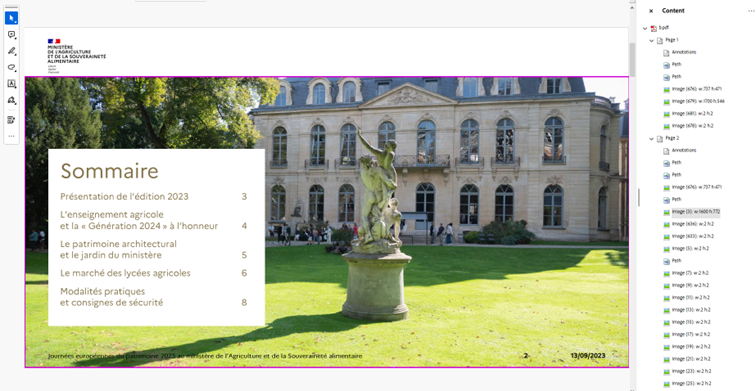
How to correct
As shown in the example above, the content may appear visually normal in the PDF; however, upon closer inspection, it becomes evident that the text is actually composed of paths or images rather than selectable text. This means the content is not inherently accessible and will require OCR processing to convert it into an editable and taggable text layer. This means that the content cannot be directly selected. When this happens, we have two solutions:
Request a New Document or Native Source
If the document contains non-selectable content, such as OCR or image-based text, it may be necessary to request a new version. Reach out to the client and ask them to provide either an updated document or the native source file (e.g., Word, InDesign, etc.) so that a new, accessible version can be generated. This will help ensure the document is properly formatted and ready for tagging, making it accessible for all users.
Utilize Acrobat's OCR Function
Use the OCR (Optical Character Recognition) function in Adobe Acrobat to detect and convert the visual text present in the document into actual, selectable content. This process will transform any image-based or scanned text into a text layer, making it accessible and ready for tagging. Once the OCR has been applied, the text can be edited, tagged, and further processed to meet accessibility standards.
- Open the PDF in Adobe Acrobat:
- Launch Adobe Acrobat and open the PDF file that contains image-based or scanned content.
- Activate the OCR Tool:
- Go to the Tools menu in the upper left corner.
- In the Tools panel, select Scan & OCR. If you don't see it, click More Tools to locate it.
- Once you’re in the Scan & OCR toolset, click on Recognize Text.
- Choose OCR Settings:
- After clicking Recognize Text, select In This File from the dropdown menu.
- A dialog box will appear with various settings. You can choose:
- Language: Select the language of the text in the document for accurate recognition.
- Output Style: Choose either Searchable Image (Exact) or Searchable Image (Compact). The Exact option keeps the original image as it is while adding the text layer, while Compact tries to compress the output.
- Start OCR Process:
- Once the settings are selected, click Recognize Text to begin the OCR process.
- Acrobat will process the document and attempt to detect the text within the images or scanned pages, converting it into selectable and searchable text.
- Review OCR Results:
- Once the OCR is completed, you can review the document to ensure that the text has been properly recognized and converted.
- You can now select, copy, and edit the text as needed.
Additional Tips
- OCR Accuracy: OCR may not always be 100% accurate, especially with poor-quality scans or unusual fonts. Review and manually correct any errors.
- Image Cleanup: If the document contains complex images or noisy backgrounds, it’s recommended to clean up the images before running OCR for better results.
- Document Format: If you have the native source (e.g., Word, InDesign), it’s better to request that from the client as OCR might not always provide perfect results for complex formatting.