

Tags
Tables
A simple data table refers to a table with one or more column or row headers that help organize and present data. Properly formatting the header row and column is essential, as it allows assistive technology to interpret and announce the data correctly.
Table Structure
The structure of a table depends on its content. It is important to manually verify the table structure in Adobe Acrobat Pro to ensure accessibility.
Characteristics of Accessible Tables
- Consistent Column and Row Count: Each row should have the same number of columns, and each column should have the same number of rows.
- Designated Headers: There should be a clearly defined header row, header column, or both. These headers help assistive technology understand the relationship between data points.
Table Element Structure
Within PDF documents, tables use specific elements to organize content:
- Table Element (Table): This is the overall container for the table.
- Table Row Element (TR): Defines each row in the table and is a direct child of the Table element.
- Table Header (TH) or Table Data (TD): These elements represent individual cells within a row. Each cell is a child element of the row (TR).
Special Table Considerations
- Spanning Cells: If a cell spans multiple rows or columns, the
RowSpanorColSpanattribute should be used to indicate this. - Empty Cells: For tables with empty cells, you may need to insert empty
TDelements to ensure every row and column has the same number of cells. This helps maintain the structure and ensures accessibility.
By following these guidelines, you can create tables that are both functional and accessible for all users, including those relying on assistive technologies.
Step 1 : Create Table Tag
- Right-click the parent tag (e.g., <Document>) in the Tags panel.
- Choose "New Tag", then select "Table" and click OK.
- This creates a <Table> tag, which will hold the rows and cells.

Step 2 : Add Table Row (<TR>) Tags
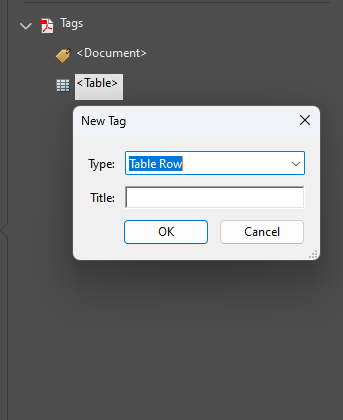
- Right-click the <Table> tag and select "New Tag".
- Choose "TR (Table Row)" and click OK.
- Repeat for each row in the table.
- Make sure it is nested inside the Table Tag
Step 3 : Add Header (<TH>) and Data (<TD>) Tags
- Right-click each <TR> tag and select "New Tag".
- If the cell is a header, choose "TH" (Table Header) - when the content represents a header for a row, column, or group of data.
- If the cell is a data cell, choose "TD" (Table Data) - when the content is regular data in the table. This is where you place the actual data corresponding to the headers.
- Repeat for all table cells.
Step 4 : Arrange Table Tags Correctly
- Ensure the structure follows a logical order.
- Drag and drop tags in the correct sequence if needed.
For example, a simple table is tagged as follows :
Step 5: Assign Header Scope (Refer to the section: Scope and Span for detailed explanations)
- Right-click each <TH> tag and select Properties.
- Under Scope, select:
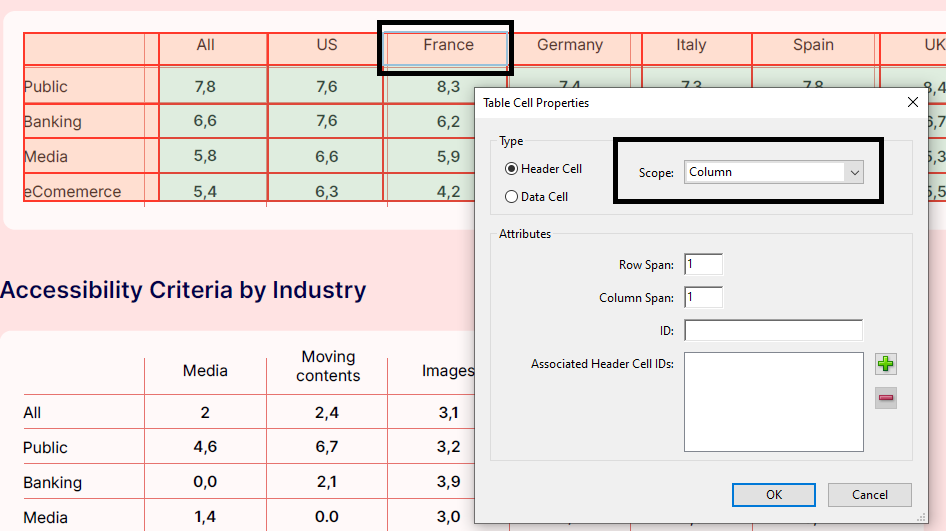
- Column if the header applies to a column.
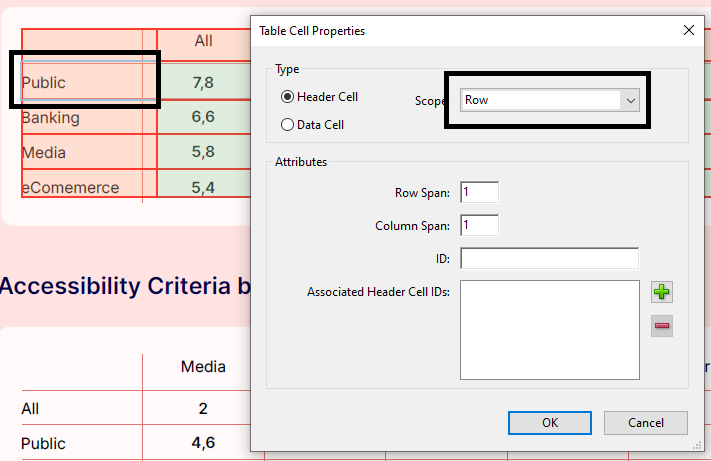
- Row if the header applies to a row.
Column Scope
Row Scope
Step 6 : Validate the Table Structure
- Use Table Editor:
- Right-click the <Table> tag and select "Table Editor".
- Ensure cells are numbered correctly in reading order.
Scope
In accessible PDFs, header scope defines how screen readers associate table headers (<TH>) with data cells (<TD>). Setting the correct scope ensures that users understand which headers correspond to each data cell.
Types of Header Scope
- Column Scope (Scope: Column): Used when a header applies to an entire column of data.
- Row Scope (Scope: Row): Used when a header applies to an entire row of data.
How to Set Header Scope in Acrobat
Step 1: Open the Tags panel.
Step 2: Right-click a <TH> (Table Header) tag and select Properties.
Step 3: In the Tag Properties window, choose:
- Scope: Column (for column headers).
- Scope: Row (for row headers).
Step 4: Click Close to save.
Span
Spanning table headers correctly is crucial for maintaining accessibility and readability in complex tables. It ensures that screen readers accurately associate data with the correct headers, improving navigation and comprehension for users with disabilities. Without proper spanning, merged or multi-level headers may cause confusion, leading to misinterpretation of information. Additionally, proper header spanning helps maintain the logical structure of the table
Steps to Set Column and Row Span in Acrobat
Step 1. Locate the Table Structure
- Expand the Table tag to find rows (<TR>) and cells (<TH> or <TD>).
Step 2. Select the Cell to Span
- Right-click the cell that should span multiple columns or rows.
- Click Properties to open the Tag Properties window.
Step 3. Set Row Span or Column Span
- In the Properties window, find the Row Span and Column Span fields.
- Enter the number of rows or columns the cell should span.
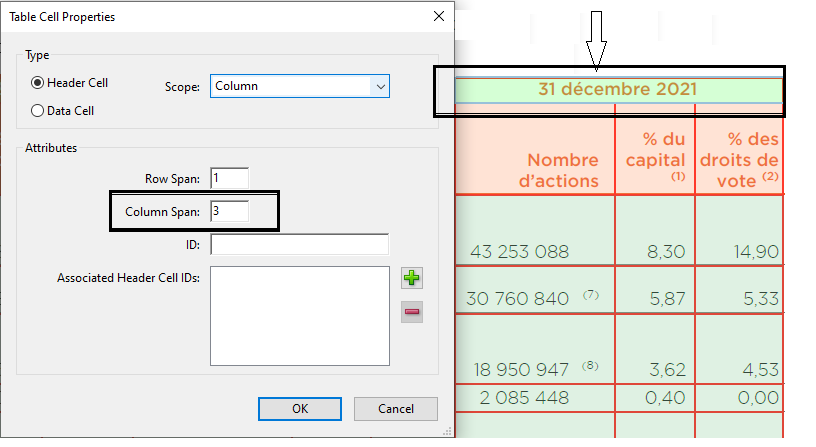
An example of a Table Header that spans on 3 columns
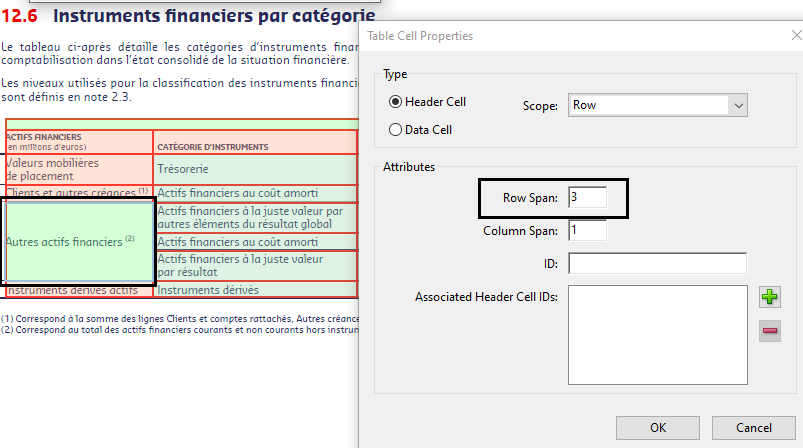
An example of a Table Header that spans on 3 rows
Step 4. Save and Test
- Click Close to save the changes.
- Use a screen reader (e.g., NVDA) or Acrobat’s Table Inspector to verify correct reading order.
Tagging complex vertical tables for accessibility involves organizing and labeling the table's structure in a way that ensures screen readers can accurately interpret and present the data. Unlike traditional horizontal tables, vertical tables often require careful attention to column and row relationships, especially when headers span multiple rows or columns.
By manually tagging the table's header, rows, and data cells, as well as specifying header relationships, the table becomes navigable and understandable for users with disabilities. This process ensures that all content is conveyed logically, following the correct reading order, which is essential for an accessible and inclusive experience.
Best Approach to Tagging a Complex Table
1. Work in Sections
- Tag the table in parts rather than all at once.
- Begin with the simpler sections (horizontal) before handling the complex header.
2. Tag the Table Header Properly
- Identify the header cells and ensure they are tagged as <TH>.
- Span the header correctly across multiple rows or columns if needed.
- Assign the appropriate scope (row or column) to each header cell.
3. Tag Row by Row
- Proceed row by row to maintain a structured and logical reading order.
- Breaking the tagging process into smaller sections makes it more manageable.
4. Fix Errors Systematically
- If errors occur, resolve them by section, just as they were tagged.
- Adjust individual table elements rather than redoing the entire structure.
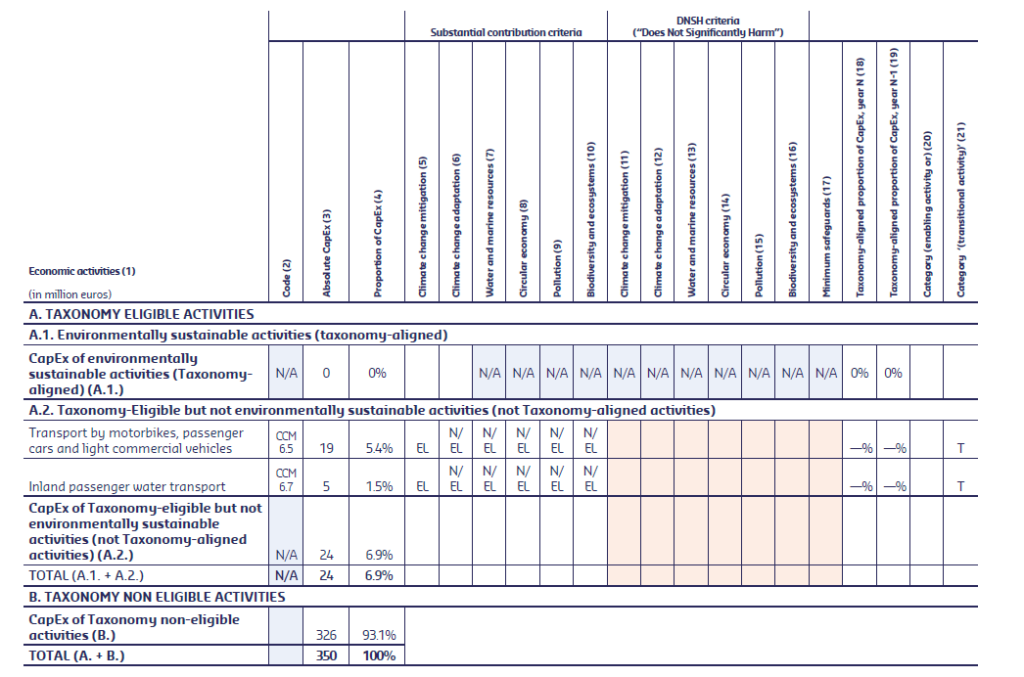
When a table is correctly tagged, screen readers can announce the table’s structure, including the number of rows and columns, and read the data in a logical order. For instance, header cells (<TH>) are identified and announced as such, making it clear that they are labels for the corresponding data cells. This allows users to understand the relationship between the table’s content.
Screen readers offer features like row and column navigation, where users can move across the table's structure using the arrow keys. In some screen readers, users can also use specific commands to read data row by row, column by column, or even cell by cell.
Keyboard Shortcuts
- Navigate to the next table: T
- Navigate to the previous table: Shift+T
- Move to the next row: Alt+Down Arrow
- Move to the previous row: Alt+Up Arrow
- Move to the next column: Alt+Right Arrow
- Move to the previous column: Alt+Left Arrow
- Read column header (if tagged correctly): NVDA+Ctrl+Alt+Left Arrow
- Read row header (if tagged correctly): NVDA+Ctrl+Alt+Up Arrow
On this page
The <Table> tag ensures structured, accessible tables by defining clear relationships between headers and data, maintaining a logical reading order, and preventing structural errors. Compliance with PDF/UA (ISO 14289) guarantees that assistive technologies can interpret tables correctly, ensuring clarity and usability.
| Reference | Description | Purpose and Results |
|---|---|---|
| PDF/UA §7.5, EN 301 549 §10.1.3.1 | Tables must have properly tagged headers (<TH>) and data cells (<TD>). | Purpose: Ensures assistive technologies can interpret tables correctly. Result: Users can navigate tables logically using screen readers. |
| PDF/UA §7.5.1, EN 301 549 §10.1.3.2 | Tables must have a logical reading order, following row and column structure. | Purpose: Ensures screen readers announce content in the correct order. Result: Users understand the data without confusion. |
| PDF/UA §7.5.2, EN 301 549 §10.1.3.3 | Table headers must be programmatically associated with data cells using scope, id, and headers attributes. | Purpose: Helps screen readers correctly associate table data with column/row headers. Result: Users can understand relationships between data points. |