Tag
Part/Section
Container/Grouping tags, such as <Sect> (Section) and <Part>, are optional but highly beneficial for organizing content logically. They help structure the document by grouping related elements, making it easier for assistive technologies (like screen readers) to interpret and navigate the content.
1. Container/Grouping Tags:
- Purpose: They group related content, providing logical divisions within a document.
- Usage:
- Group content by chapters, sections,
- Separate large blocks of content for clarity and logical flow.
2. Sections Represent Pages:
- Rule: Each page in the PDF should be represented as a separate <Sect> tag.
- Example: If the document has 10 pages, there must be 10 <Sect> tags, each corresponding to one page.
- Location: These <Sect> tags exist under the <Document> tag.
3. Structure of a Page Section:
- All elements of a page (e.g., headings, paragraphs, tables, images) should be grouped under the corresponding <Sect> tag.
4. <Part> Tag:
- Purpose: Used to organize large documents with multiple chapters or sections into broader categories.
- Usage:
- <Part> tags group multiple <Sect> tags for better organization.
5. Benefits of Using <Sect> and <Part> Tags:
- Logical Organization: Helps separate content into meaningful units, aiding comprehension for all users.
- Ease of Navigation: Users can skip directly to specific sections or parts using assistive tools.
By organizing content with <Sect> and <Part> tags, accessible PDFs become more user-friendly, structured and compliant with accessibility standards.
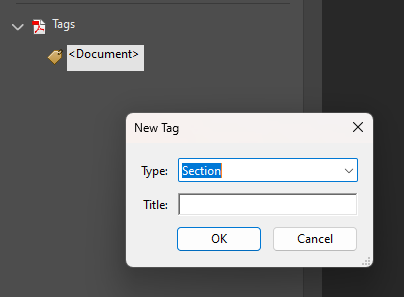
- Right-click on the Document tag
- Select “New Tag”
- Choose “Section”
- Make sure it is nested inside the Document Tag