

Tags
Note
A note tag is used to mark content that provides additional information or commentary related to the main content, typically for accessibility purposes. These notes are often associated with footnotes, endnotes, or comments in the document. They help provide extra context or explanations that might not be immediately visible or are placed in a separate location within the document.
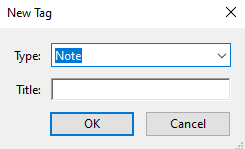
1. Create “New Tag”
2. Select “Note”
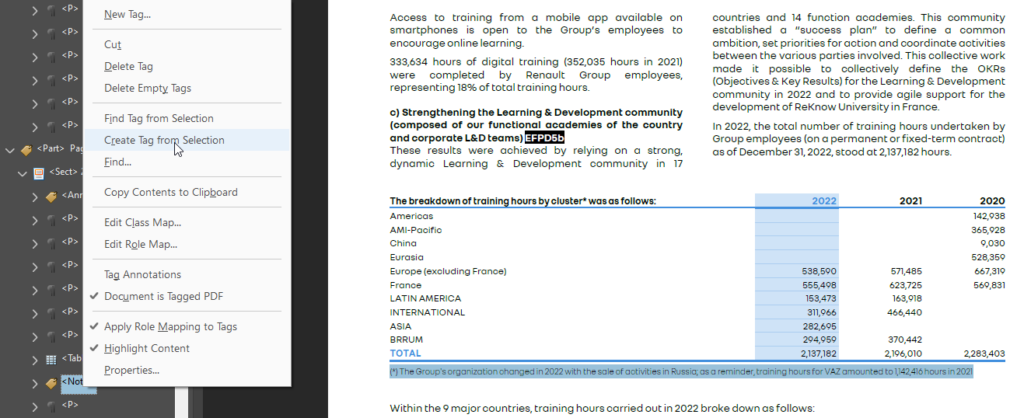
3. Select the text to be inserted in the <Note> tag.
4. Select “Create Tag from Selection”.
5. Open Properties, in the Edit Attribute Objects option, add the attributes, ‘Placement’ and ‘Block’.
- Note under Figure should always be tagged.
- Note1 should be tagged as Note. e.g ‘Source’, ‘Ml’ ‘Nl’ is not note.

Not a Note

Not Note

Not a Note
The Note tag allows screen readers to identify and distinguish notes from other content, ensuring that users are informed of supplementary information that might not be immediately visible in the main body of text. Notes may include footnotes, side comments, or annotations, and when properly tagged, they contribute to a more accessible reading experience. When a note is encountered, the screen reader will announce it as a “note” and then read the content associated with it.
Keyboard Shortcuts
Basic Navigation
- Read the next note: Ctrl+Down Arrow (when focus is on the note)
- Read the previous note: Ctrl+Up Arrow (when focus is on the note)
- Move to the next element (including notes): Tab
- Move to the previous element (including notes): Shift+Tab
Identifying Notes in the Document
- Open the Elements List: NVDA+F7
- In the Elements List, select the “Notes” tab (if available) to list all notes in the document.
Reading the Current Element (Note)
- Read the current note: NVDA+Up Arrow (when focus is on the note)
General Read Continuously
- Start reading from the current location: NVDA+Down Arrow