

Tags
Figure
Figures (images, charts, graphs, etc.) need to be properly described and tagged to ensure that individuals with visual impairments can understand and interact with the content. Every figure should have an alternative text (alt text) description.
Step 1 : Creating the <Figure> tag
- Select the Accessibility option and the Reading Order tool.

Open Accessibility

Click on reading order
- Use the Reading order tool to select the image.
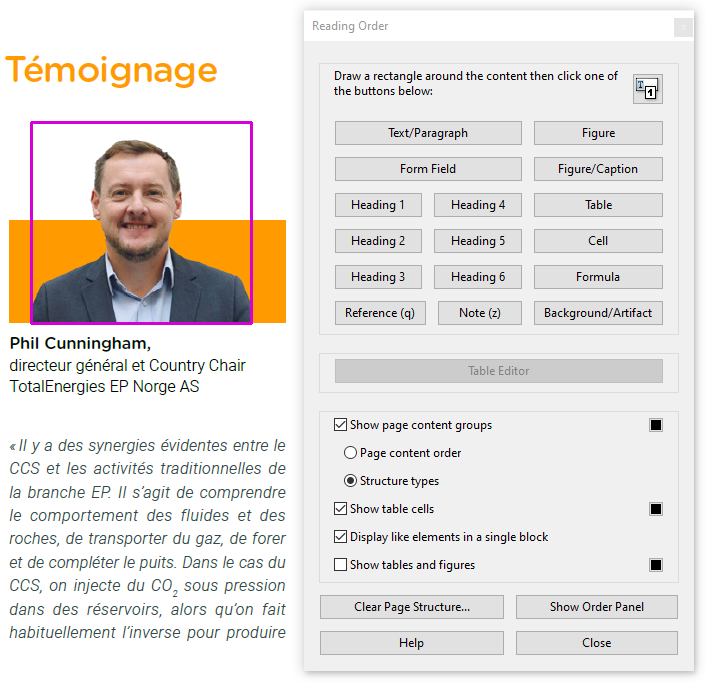
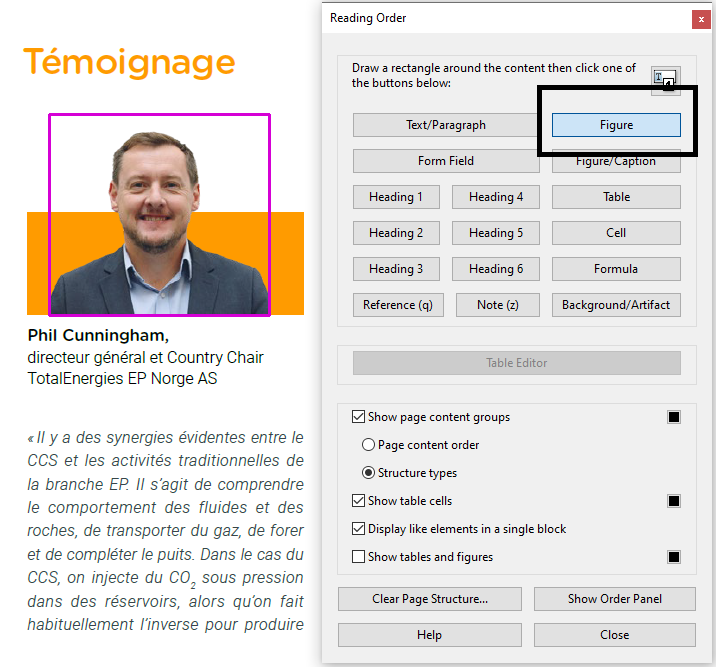
- In the Reading Order box, select the Figure option.
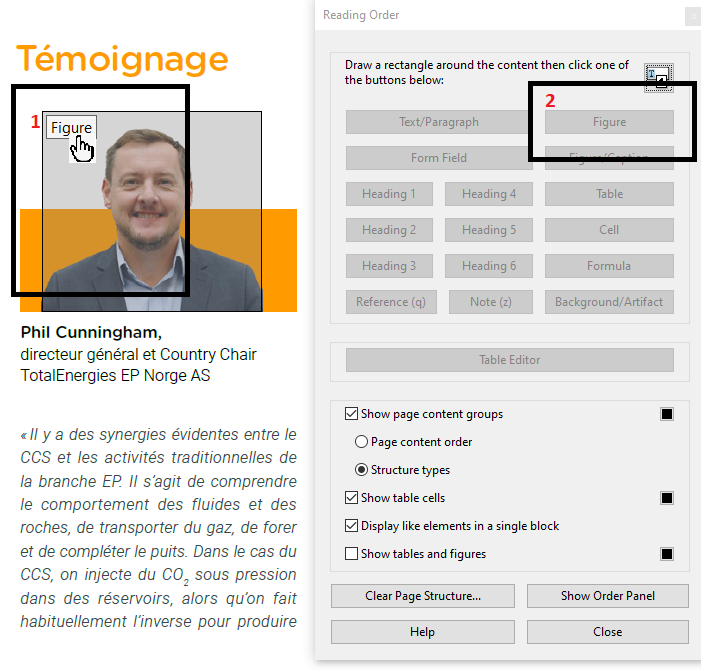
- Select the figure structure and click on the Figure option in Order again.
Step 2 : Add alternate text on figure
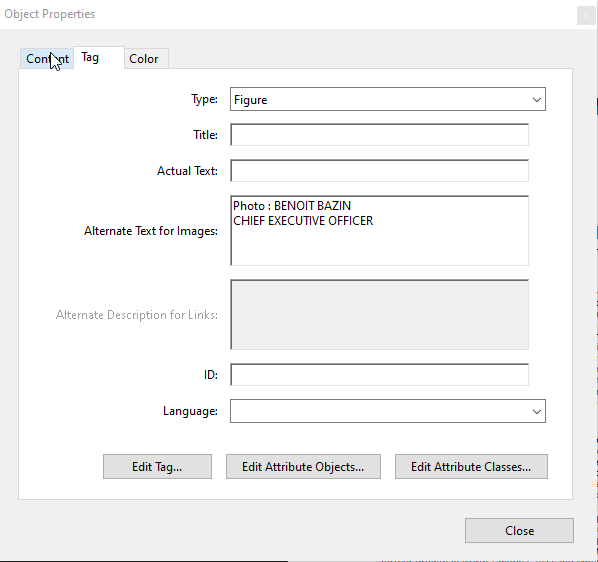
- Select the figure, open Properties and select Alternate Text for Images.
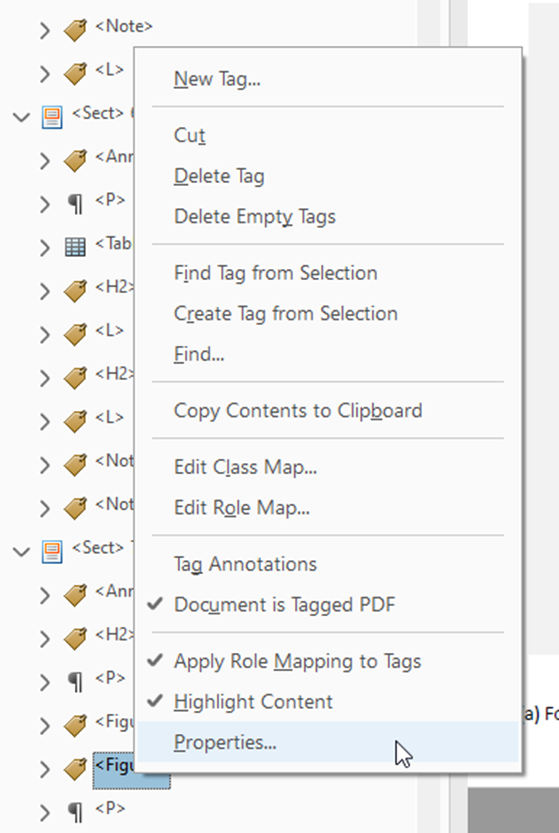
- Add alternative text and select close.
Step 3 : Add figure attributes
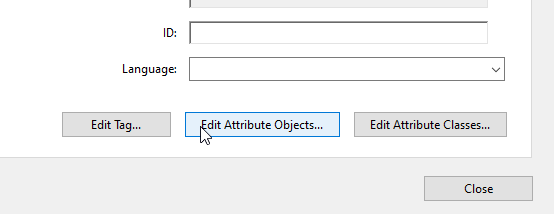
- In the Edit Attribute Objects option, add the attributes 'Placement' and 'Block'.
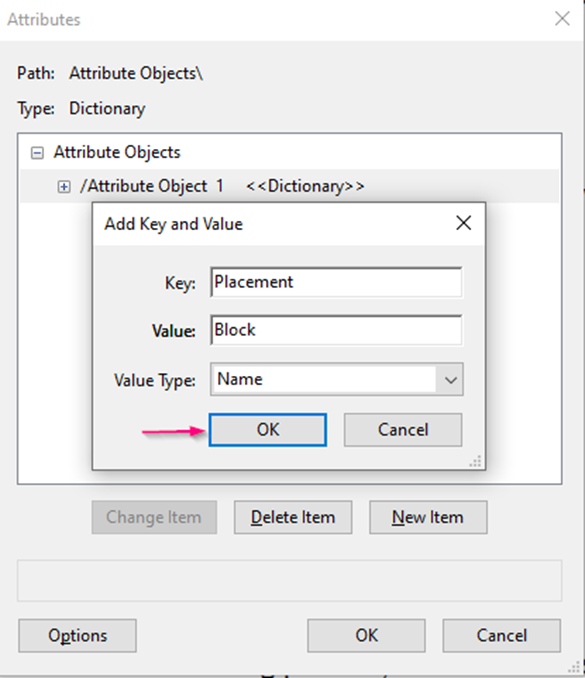
- Select OK twice and your figure is complete.
In PDF accessibility, artifact figures refer to elements (such as images, graphics, or other non-text content) that do not contribute any meaningful information and are intended solely for visual or design purposes. These artifacts should be treated in a way that they are ignored by screen readers and other assistive technologies, as they are not essential for understanding the document's content.
Tag as Artifact
- The key action is to tag these figures as "artifact" in the document structure. When tagged as an artifact, a screen reader will ignore the element, and it will not be read out loud to users.
- In most PDF authoring tools, like Adobe Acrobat Pro, you can tag an element as an artifact through the accessibility or tagging options.
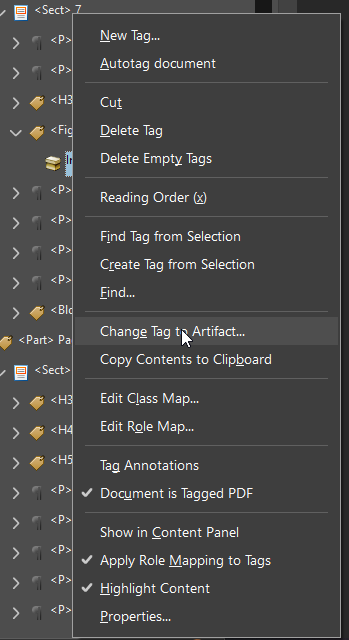
Note : If you accidentally tagged an image as a figure or want to remove a figure tag, do not delete the image or its path. Instead, right-click on it and choose "Change to artifact" to remove its accessibility tag.
Common Examples of Artifact Figures
- Decorative images like borders, patterns, or background images.
- Logos or icons that do not provide any additional information in the context of the document.
- Page numbers or repeated symbols used purely for design purposes.




On this page
XObjects are often used to store images in a PDF, but if they are not tagged properly, they can be problematic for accessibility. To ensure accessibility:
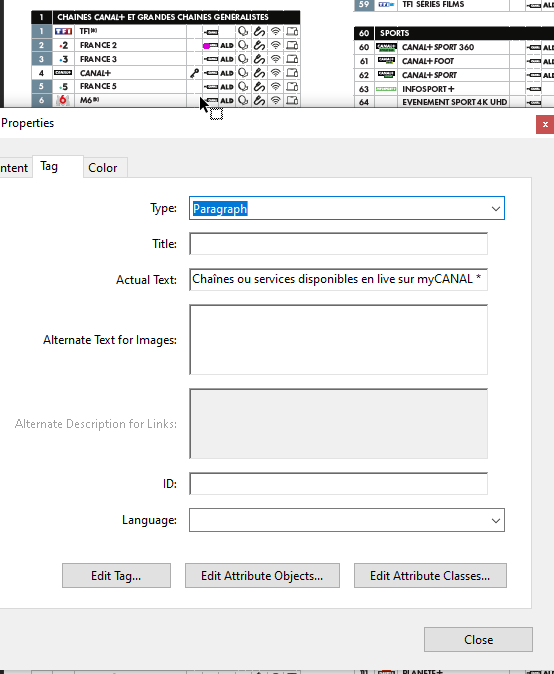
- Try the cut&paste method to remove from Xobject using the Edit PDF tool in Adobe Acrobat Pro.

- Put a text in the background ( tagging it as 'P') on the specific page and add the relevant alternate text in the 'actual text' box.
The <Figure> tag, when used appropriately, helps screen readers identify these elements as significant parts of the content. Screen readers typically announce a figure when it’s encountered in the document, provided it has an associated alternate text description. Alt text provides a verbal description of the visual content, ensuring that users who cannot see the image still receive the same information.
To ensure a fully accessible document, figures should always be accompanied by meaningful, descriptive alt text that clearly conveys the content and context of the figure. Simply labeling an image as “image” or “graphic” is not sufficient. A more informative description, like “Bar chart illustrating the increase in sales over the past year,” provides valuable context.
In addition, figures that are purely decorative (e.g., borders or design elements) should be marked appropriately, as artifacts, so that screen readers can skip over them and prevent unnecessary interruptions.
Keyboard Shortcuts
Images (<Figure>)
- Move to next image: G
- Move to previous image: Shift+G
- Read image description (Alt Text): NVDA will announce automatically when reading, or use Object Navigation (NVDA+Shift+Arrow Keys)
Figures must be tagged using <Figure> with proper alternate text or long descriptions when necessary.
Key norms, such as Section 14.8.4.2.3, ensure that figures are appropriately tagged within the content structure, and 7.8.2 ensures alternate text is provided to describe visual content for assistive technologies. These measures guarantee that images, whether functional or decorative, are accessible to all users and contribute meaningfully to the document's content.
| Reference | Description | Purpose and Results |
|---|---|---|
| EN 301 549 10.1.1.1, ISO 32000-1:2008, 14.7.2, PDF/UA1:7.3-3, PDF/UA-2: 8.2.5.28.1, 8.2.5.28.2, 8.4.3, 8.9.4.2 WCAG 2.1 1.1.1 RA PDF 1.2 - 1.7 | Images must have alternative text (alt text) describing their content and function. | Purpose: Ensures assistive technologies can convey the image meaning to users. Result: Users relying on screen readers receive appropriate descriptions. |
| ISO 32000-1:2008, 14.8.4.5, PDF/UA-2: 8.2.5.28.1, EN 301 549 10.1.3.1 WCAG 2.1 1.1.1 RA PDF 1.1 | Decorative images must be marked as artifacts to be ignored by assistive technologies. | Purpose: Prevents unnecessary distractions for screen reader users. Result: Improves reading experience by avoiding redundant content. |
| ISO 32000-2:2020, 14.9.3 ISO 32000-1:2008, 14.7.2 EN 301 549 9.1.4.5 | Complex images (charts, diagrams) must include a text description or caption. | Purpose: Provides meaningful context beyond basic alt text. Result: Ensures users understand the data and relationships within the image. |
| PDF/UA1:7.3-1 EN 301 549 9.1.4.5 | Images used for navigation must have descriptive link text or alt text. | Purpose: Enables users to navigate efficiently via assistive technologies. Result: Improves usability for keyboard and screen reader users. |