

Tags
BlockQuote
A block quote is a section of text that is set apart from the main content, often to indicate a quotation, excerpt, or reference. This separation is often achieved with indentation, line spacing, or font style changes. Proper tagging of block quotes in a PDF ensures that assistive technologies like screen readers convey the intended context to users, differentiating it from surrounding content.
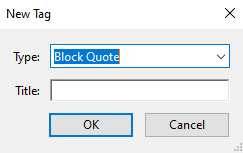
Step 1: Create ‘New Tag and Select ‘BlockQuote’.
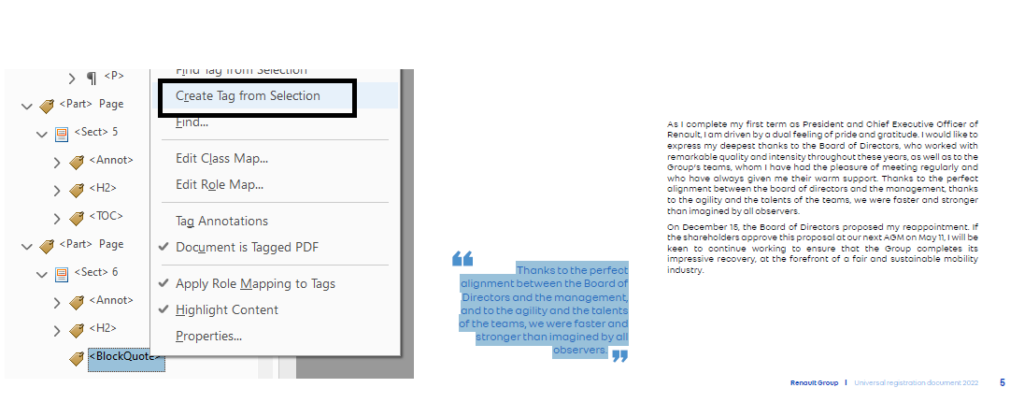
Step 2 Select the text to be inserted in the <BlockQuote> tag.
Step 3: Click on ‘Create Tag from Selection’.
Identify and tag appropriately
Identify block quotes by looking for visually distinct formatting, such as indentation or unique font styles, and ensure they are tagged with <BlockQuote> tags.
Maintain Reading Order
Verify that Blockquotes appear in the correct and logical sequence within the reading order.
Visual Cues
Look for differences in formatting, such as indentation, font style (e.g., italics or bold), line spacing, quotation marks, or decorative elements like borders or shaded backgrounds.
Always use the <BlockQuote> tag for block quotes, not <P> alone.
Ensure the <BlockQuote> tag is self-contained, holding only related text or inline elements.
Use Keyboard Shortcuts: Streamline tagging with shortcuts like Ctrl+Drag for rearranging tags and F2 for renaming tags.
When properly tagged, screen readers interpret block quotes as distinct sections and may announce them with phrases like:
- "Begin block quote..."
- The quoted text.
- "End block quote."
This behavior helps users identify that the text is a quoted reference, enhancing their understanding of the document.
Keyboard Shortcuts
- Read line-by-line to detect blockquotes: Up/Down Arrow
- Identify blockquote styling (if visually distinct): NVDA+F (reads font attributes like italics or indentation)
- Check indentation levels:
- Use Object Navigation (NVDA+Shift+Arrow Keys) to inspect structure.