


Tags
Link
Hyperlinks in PDFs are an essential element for accessibility, as they enable users to navigate within the document or to external resources. Properly tagged and formatted hyperlinks are crucial for users relying on assistive technologies like screen readers or keyboard navigation.
Hyperlinks in PDFs can take users to:
- External URLs: Such as websites, online forms, Qr Codes or external resources.
- Internal Locations: Jumping to a different section or page within the same document (e.g., table of contents links).
- Email Links: Opening an email client with a predefined email address.
Step 1 : Select the text to be inserted in the <Link> tag.
- Click on “Create Tag from Selection”.
- Select the text to be transformed into a link and click on Create Link.
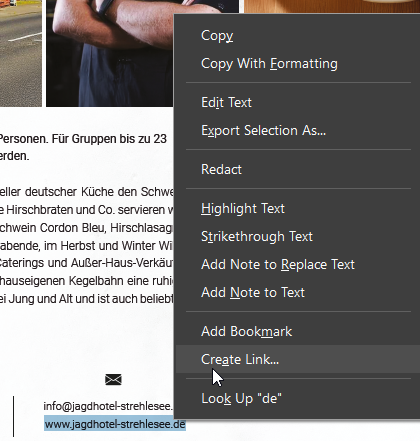
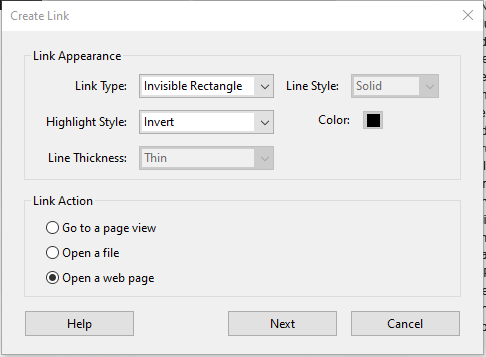
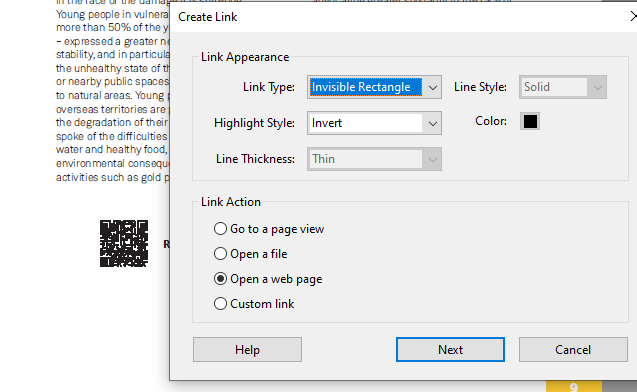
- You'll see a window pop up, select 'invisible Rectangle' for link type
- Link action should be 'Open a web page'
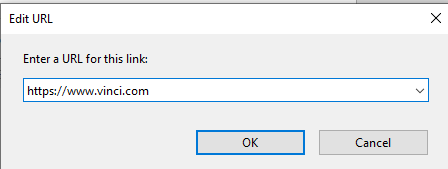
- Add the URL and click on OK.
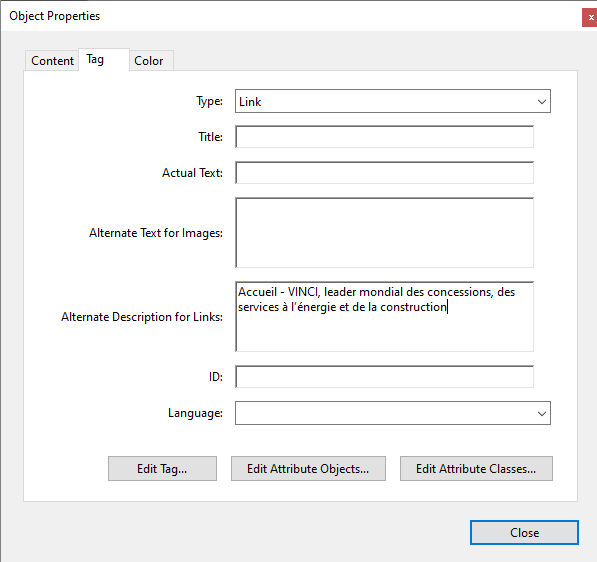
Step 2 : Open the link Properties and select Alternate Description for Link.
- Add the correct alternative text and click on close.
- The alternate text (or accessible name) of a link should correspond to the title of the target webpage.
Note: Links should always include clear and descriptive alternative text.
Step 3 : Add Link attributes
- In the Edit Attribute Objects option, add the attributes 'Placement' and 'Block'.
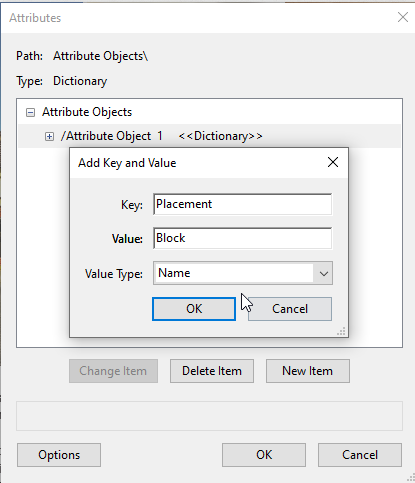
- Select OK twice and your Link is complete.
Example of email link :
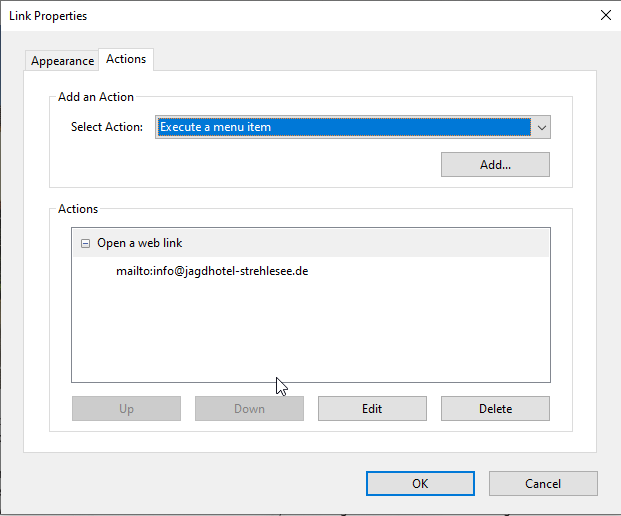
Add 'mailto:' and the relevant mail in the URL box.
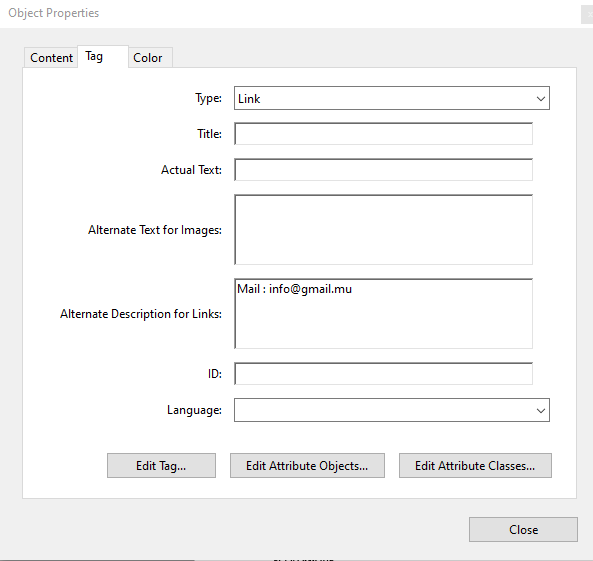
Note: When a link is nested inside <P> (paragraph) tags, the Placement block in the link attributes is not required. The <P> tag already provides the necessary structure and context for the link.
1. QR Code
QR codes are scannable barcodes that store data like links, text, or contact info. They’re read by cameras or apps and are commonly used for easy access to websites or sharing information. QR code links are tagged differently by first scanning the QR code and then manually adding the corresponding link to the tag.
Step 1: Locate the QR Code
- Navigate to the page containing the QR code.
- Ensure that the QR code is visible and positioned properly in the document.

Step 2: Add the Link Associated with the QR Code
- Manually Extract the QR Code Link:
- Use a QR code scanner (on a smartphone or an online tool) to extract the URL embedded in the QR code.
- Copy the URL to your clipboard.
- Create a Link Annotation:
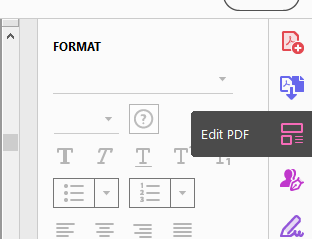
- Go to Edit PDF in the toolbar.
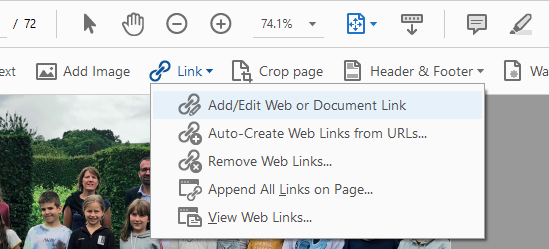
- Click Link > Add/Edit Web or Document Link.
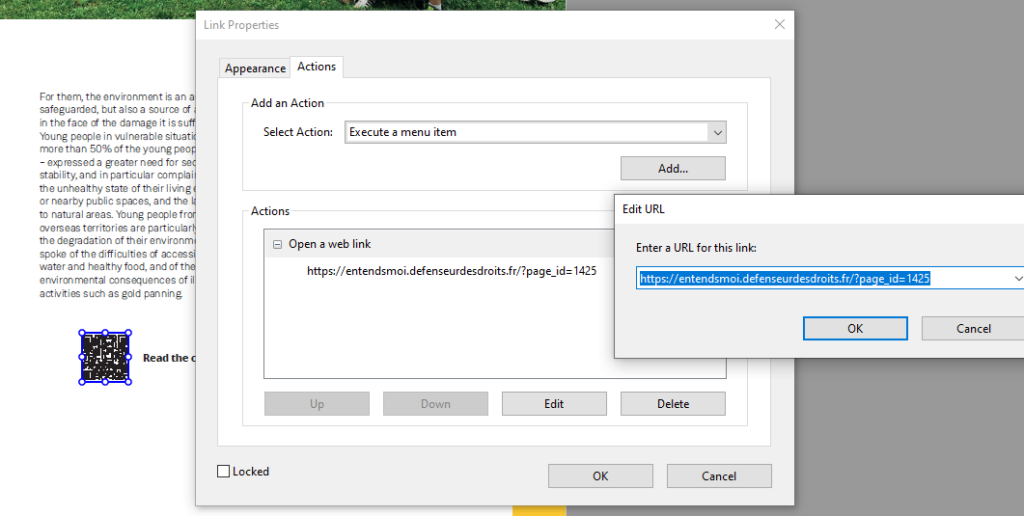
- Draw a box around the QR code and add the URL in the dialog box.
- Find and Tag the Link:
- Open the Tags panel.
- Use the Find tool in the Tags panel to locate Unmarked Links.
- When the link is highlighted in the document, right-click it and choose Create Tag from Selection.
- Select Link as the tag type.
- Verify the Tag:
- Check the Tags panel to ensure the link is properly tagged and nested.
- Add any required alternative text to describe the QR code, if necessary.
Note : The alternate description to link should include "QR Code::".
2. Social media links
When tagging social media links in a PDF for accessibility, it’s essential to ensure that assistive technologies can interpret and navigate them correctly. Each social media link should be tagged as a Link (<Link>) within the Tags Panel, with meaningful and descriptive alternative text that clearly indicates the destination or purpose of the link, such as "Visit our LinkedIn page" or "Follow us on Twitter for updates."
Proper tagging enhances navigation and ensures compliance with accessibility standards. Always verify links using Acrobat’s Accessibility Checker and test with a screen reader for usability.
Steps to tag a Social Media link:
- Ensure the Link is Tagged – Locate the Link tag in the Tags Panel or create one if missing.
- Use Descriptive Link Text – The link should clearly indicate its purpose (e.g., "Follow us on LinkedIn").
- Verify the Link Annotation – Expand the Link tag, check the OBJR (Object Reference), and ensure the correct URL is assigned.
- Set Alternative Text (If Needed) – Add meaningful Alt Text in Properties if the link requires additional context.
- Test for Accessibility – Run Acrobat’s Accessibility Checker and use a screen reader to confirm proper navigation.

Example of social media links
Screen readers recognize links and announce them as interactive elements. Users can navigate links efficiently using shortcuts, such as K to move to the next link and Shift+K for the previous link in NVDA. Additionally, the Elements List (NVDA+F7) provides an overview of all links in a document, making it easier to locate specific destinations.
For the best user experience, links should have clear, descriptive text rather than generic phrases like "Click here," ensuring that users understand their purpose without relying on surrounding context.
Keyboard Shortcuts
- Navigate by link: K (next link) / Shift+K (previous link)
- List all links: NVDA+F7 (then select "Links" tab)
- Activate a link: Enter
On this page
- Common Mistakes While Tagging Links & How to Fix Them
- 1. Using Generic Link Text ("Click Here")
- 2. Not Nesting the Link Inside a <Link> Tag
- 3. Missing or Incorrectly Tagged Link Annotation (OBJR)
- 4. Unclear or Missing Alternative Text
- 5. Incorrect or Broken URLs
- 6. Failing to Test Links for Accessibility
Common Mistakes While Tagging Links & How to Fix Them
1. Using Generic Link Text ("Click Here")
2. Not Nesting the Link Inside a <Link> Tag
3. Missing or Incorrectly Tagged Link Annotation (OBJR)
4. Unclear or Missing Alternative Text
5. Incorrect or Broken URLs
6. Failing to Test Links for Accessibility
Links in a PDF document must be properly tagged, logically ordered, and semantically identified to ensure accessibility. Key norms, such as section 7.18.3, ensure that links are marked as interactive elements with proper annotations and alternate text. These measures allow assistive technologies to provide context, navigate links efficiently, and announce their purpose effectively. Proper implementation of link norms enhances the overall accessibility and usability of the document for all users.
| Reference | Description | Purpose and Results |
|---|---|---|
| PDF/UA §7.18.3, EN 301 549 §10.2.4.4, RAPDF 4.1 + 4.2 | Links must be tagged with <Link> and include meaningful text. | Purpose: Ensures assistive technologies can read and interpret links properly. Result: Users can navigate links efficiently with screen readers. |
| PDF/UA §7.18.3, EN 301 549 §10.2.4.4, RAPDF 4.1 | Link text should be descriptive and not just "Click here" or "Read more." | Purpose: Helps users understand where the link leads. Result: Improves usability and accessibility for users relying on keyboard navigation or screen readers. |
| PDF/UA §7.18.3, EN 301 549 §10.2.1.1 | Links should be programmatically determinable and keyboard accessible. | Purpose: Ensures users can navigate using assistive technologies. Result: Maintains logical document structure and usability. |
| PDF/UA §7.17, EN 301 549 §10.2.4.1, RAPDF 7.2 | Links should be included in the document outline if used for navigation purposes. | Purpose: Allows users to find key sections using bookmarks or ToC navigation. Result: Enhances the overall accessibility of the document. |