


Tags
Lists
Lists help organize related items, making them easier to read and understand. If lists aren’t tagged correctly and are instead tagged as paragraphs, assistive technologies may read them as a single paragraph or a run-on sentence. Proper tagging allows assistive tools to identify the start and end of a list and provide the total number of items.
1. Semantic Structure:
- The <L> tag communicates to assistive technologies that the enclosed content represents a list, helping distinguish it from other structural elements like paragraphs or headings.
2. Assistive Technology:
- Screen readers recognize the <L> tag as the start of a list and announce the total number of list items. They also interpret <Lbl> tags as labels (e.g., bullets or numbers) and <LBody> tags as the associated content, enabling clear and structured navigation.
3. Tag Hierarchy:
- In an accessible PDF, lists are organized with the following structure:
- <L>: The parent tag for the entire list.
- <LI>: Child tags representing each list item.
- <Lbl>: Contains the bullet or number for the list item.
- <LBody>: Contains the content of the list item. Nested lists are placed within the <LBody> tag.
4. Best Practices:
- Ensure all lists are tagged with the <L> tag and follow the correct structure.
- Always include <Lbl> tags for list labels (e.g., bullets or numbers) to improve clarity.
- Avoid tagging list items as paragraphs, as this confuses assistive technologies.
- Use <LBody> tags for all list content and nest sub-lists under the <LBody> of the parent <LI>.
5. Testing Accessibility:
- Use tools like Adobe Acrobat’s Accessibility Checker or screen readers such as NVDA or JAWS to ensure:
- Lists are correctly tagged with <L>, <LI>, <Lbl>, and <LBody>.
- Nested lists are properly structured and navigable.
6. Nested List (Child List)
- If there’s a list within a list, this is considered a nested list. For the nested list, you would tag it in the same way as the parent list but apply it within the context of the list item from the parent list. The nested list will also be tagged as a “List”, but it will be within the “List Item” (LI) tag of the main list.
By following these guidelines, you enhance the document’s usability and compliance with standards like WCAG (Web Content Accessibility Guidelines) and PDF/UA (Universal Accessibility).
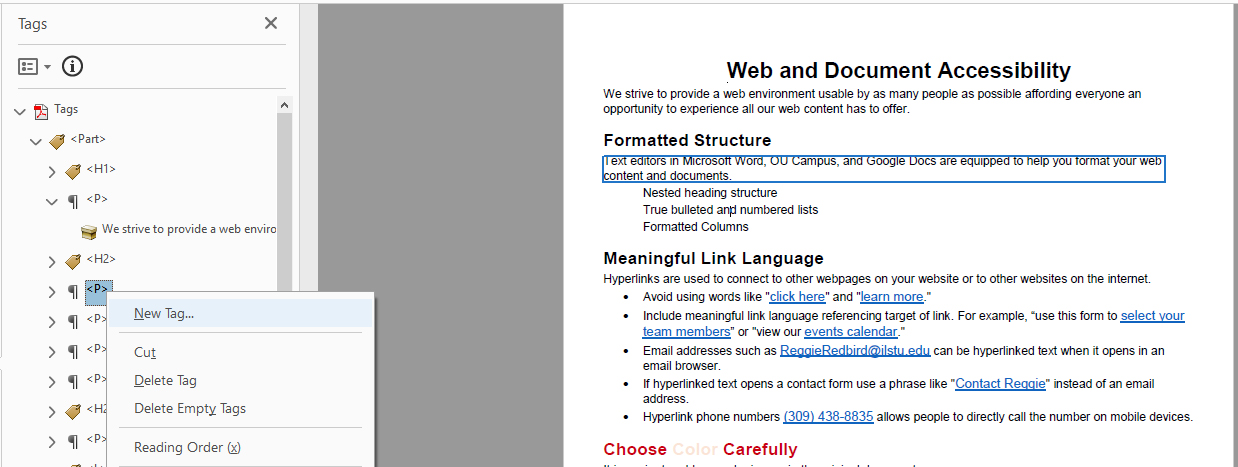
Step 1. Create a New Tag
- Right-click on the tag above the place where you want to add a new tag.
- Select "New Tag" from the list of available options.
Step 2. Select List Type
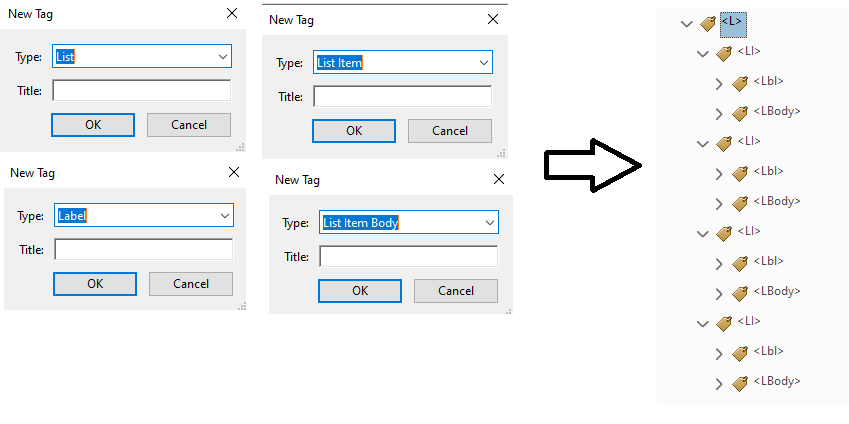
- In the New Tag dialog box, select "List" from the Type options.
- Once the List tag is selected, create the following tree structure for your list:
- List
- List Item
- Label
- List Item Body
- List Item
- List
Step 3. Select the Text to be Inserted into the <Lbl> and <LBody> Tags
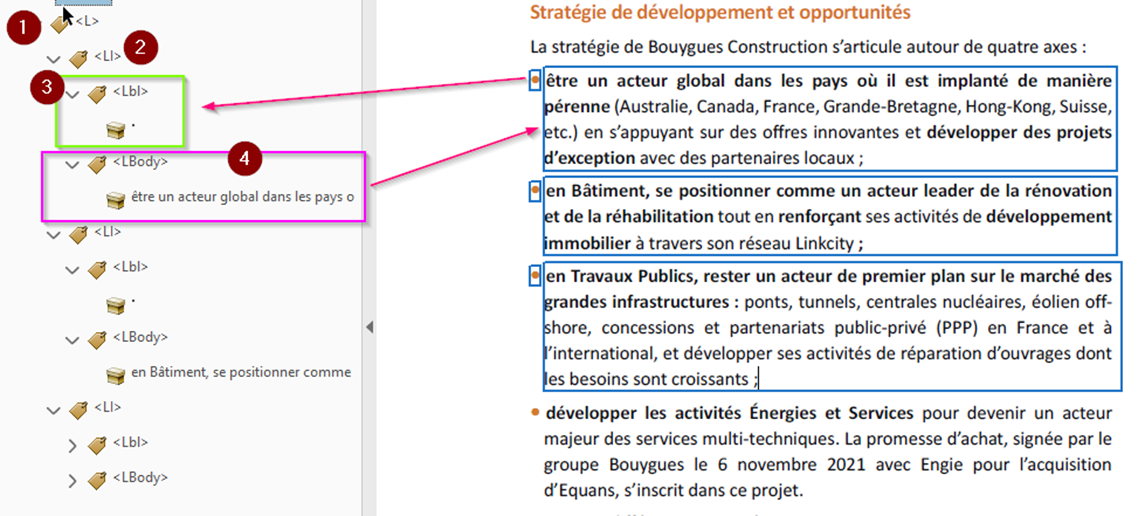
- Highlight the text in the document that corresponds to the Label (
<Lbl>) and List Item Body (<LBody>) tags. This is the content that will be inserted into each of these tag
Step 4: Click on "Create Tag from Selection"
- After selecting the appropriate text, right-click on the empty tag in the Tags Pane.
- Select "Create Tag from Selection" from the context menu. This action will assign the selected text to the <Lbl> (Label) and <LBody> (List Item Body) tags, properly linking them to the list structure.
Note
- When tagging lists in PDFs or digital content, always tag the labels when they are present, such as bullet points, numbers, Roman numerals, letters, hyphens, dashes, arrows etc.
- Properly tagging these labels ensures that the hierarchy and structure of the list are preserved, allowing screen readers and other assistive technologies to convey the information accurately. This helps users understand the order, grouping, and meaning of the content, making your documents more accessible and navigable.
On this page
To ensure the accessibility and correctness of a list in a PDF document, consider the following aspects:
- Announcement: Ensure the screen reader announces the list type and there are no missing announcements.
- List Items: Ensure all list items are read as part of the list and not as standalone text.
- Item Navigation: Check that each list item is read as a distinct entry.
- Order/Style: Confirm the numbering or bullet style matches the visual presentation.
- Nested Lists: Verify that nested lists are announced correctly and follow a logical hierarchy.
- Errors: Look for missing or incorrect tags (e.g., <li>, <ul>, <ol>).
- Sequence: Ensure ordered lists follow the correct sequence without skipping numbers.
- Visual Order: Confirm that the visual reading order matches the tags’ structure.
Keyboard Shortcuts
- Navigate by list:
L(next list) / Shift+L (previous list) - Navigate by list item:
I(next list item) / Shift+I (previous list item)
Common PAC Errors & Fixes:
Incorrect List Structure
Incorrect list structure occurs when list items lack the required sub-elements, <Lbl> and <LBody>, resulting in an invalid list hierarchy.
To fix this issue, open the Tags Panel in Adobe Acrobat Pro, right-click on the <LI> tag, and add missing elements.
Ensure that <Lbl> contains only the bullet or number, while <LBody> includes the associated text content.
Content Not Tagged: Use
Content not tagged arises when elements are left unmarked, making them inaccessible to assistive technologies.
To address this, Find Unmarked Content to tag missing elements should be used.
Go to the "Find" tool in Adobe Acrobat Pro and select "Unmarked Content." This highlights any untagged areas in the document.
Apply appropriate tags to the identified content by right-clicking and selecting the correct tag type, such as <P> for paragraphs.
Improperly Nested Tags
Improperly nested tags occur when tags are incorrectly arranged in the hierarchy, disrupting the logical reading order.
To resolve this, access the Tags Panel and drag misplaced tags to their appropriate positions within the structure.
This restores the logical order and ensures accessibility.
List Marker Missing
The error of a missing list marker happens when the <Lbl> tag does not exclusively contain the bullet or number.
To fix this, confirm that the <Lbl> tag includes only the list marker, while the <LBody> tag contains the main list content.
Adjust tags in the Tags Panel as needed to maintain proper list semantics.
1. Use Keyboard Shortcuts:
Navigate the Tags panel and make edits faster:
- F2: Rename a tag.
- Arrow Keys: Navigate through tags.
- Ctrl + drag: Duplicate tags or reorder quickly.
2. Group and nest tags efficiently:
- Drag and drop content directly into the correct hierarchy (e.g., dragging text into <LBody> under <LI>). This is faster than creating tags from scratch.
- Copy/paste correct structures for repetitive lists.
- Tag as you go and validate frequently to catch issues early.
The PDF/UA standard emphasizes proper semantic tagging, logical reading order, and hierarchical nesting for lists to ensure accessibility. Lists must not only be visually structured but also programmatically defined to support assistive technologies. These norms ensure users can navigate, interpret, and understand list content independently and efficiently.
| Reference | Description | Purpose and Results |
|---|---|---|
| PDF/UA §7.6, EN 301 549 §10.1.3.1, RAPDF 5.2 | Lists (<L>), list items (<LI>), labels (<Lbl>), and bodies (<LBody>) must be tagged properly. | Purpose: Ensures assistive technologies can interpret lists correctly. Result: Users can navigate lists effectively using screen readers. |
| PDF/UA §7.6, EN 301 549 §10.1.3.2, RADPF 5.2 | Lists should follow a meaningful sequence and not be used for layout purposes. | Purpose: Maintains logical reading order. Result: Avoids confusion in assistive technologies and ensures proper navigation. |
| PDF/UA §7.6.1, EN 301 549 §10.1.3.1, RAPDF 5.2 | Nested lists should be structured correctly to preserve hierarchy. | Purpose: Prevents misinterpretation of complex list structures. Result: Screen readers can announce sublists properly. |