


Tags
TOC
A Table of Contents (TOC) element in a PDF contains a structured list of items, organized hierarchically. Tagging the TOC is essential for accessibility, allowing users with screen readers or other assistive technologies to navigate the document easily. Properly tagged TOCs provide a Interactive list of sections and headings, improving document usability.
- Semantic Structure:
- The <TOC> (Table of Contents) tag defines a navigable section of the document that provides an overview of its structure. This tag helps assistive technologies recognize and announce the table of contents as an organizational element distinct from the main body of the document.
- Assistive Technology:
- Screen readers identify the <TOC> tag and inform users that they are navigating a table of contents.
- The <TOC> tag allows users to jump directly to specific sections of the document by linking headings or page references.
- Tag Hierarchy:
- The <TOC> tag is typically placed at the start of a document, encapsulating <TOCI> (Table of Contents Item) tags for each entry.
- <TOCI> tags link to corresponding structural elements such as <H> (headings) or specific pages.
- Proper hierarchy ensures seamless navigation, with each <TOCI> representing a logical step in the document structure.
- Best Practices:
- Ensure each entry in the table of contents is tagged with <TOCI> and linked to its corresponding content.
- Provide clear and concise text in each <TOCI> tag to ensure users understand the destination of each link.
- Do not duplicate the table of contents in the document structure unless necessary for clarity.
- Ensure entries in the <TOC> follow the actual sequence of content in the document.
- Do not include empty <TOC> or <TOCI> tags, as they may confuse assistive technologies.
- Testing Accessibility:
- Use tools like Adobe Acrobat’s Accessibility Checker to ensure <TOC> and <TOCI> tags are properly nested and linked.
- Test with screen readers like NVDA, JAWS, or VoiceOver to confirm users can navigate the table of contents efficiently.
- Ensure that all <TOCI> links direct to the correct section of the document.
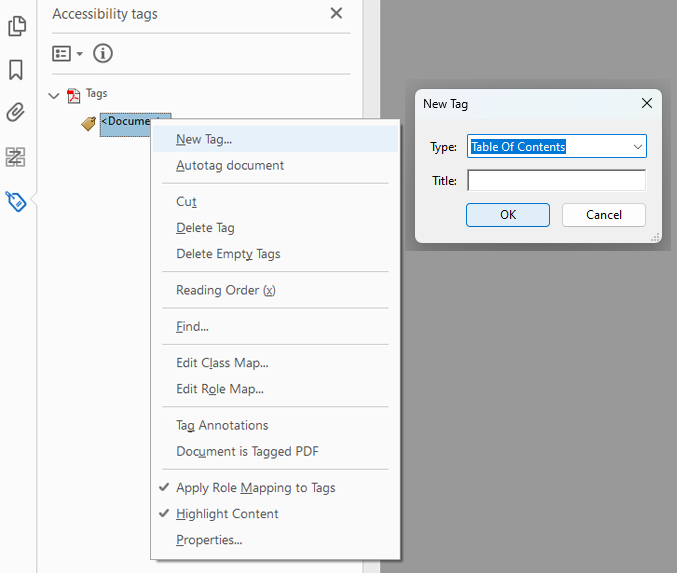
Step 1: Create a Table of Contents (TOC) Tag
- Right-click on the Document tag
- Select "New Tag" from the menu.
- Choose "TOC" (Table of Contents) as the tag type.
- Ensure the newly created TOC tag is properly nested inside the Document tag.
Step 2: Create Table of Contents Item (TOCI) Tags
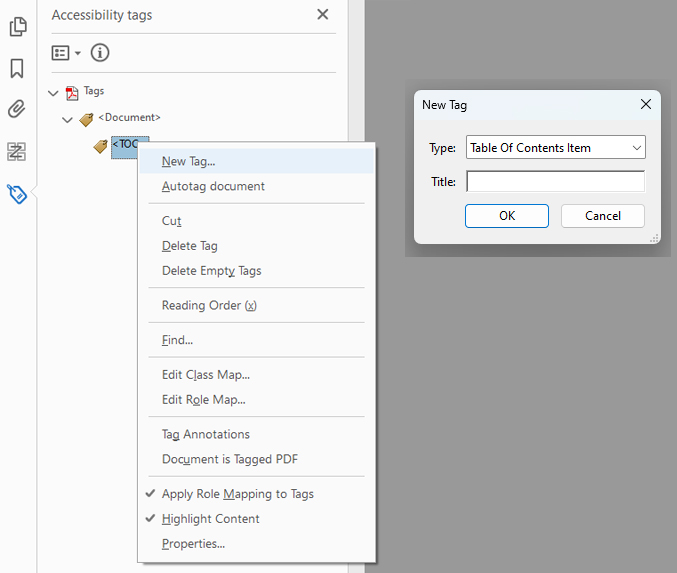
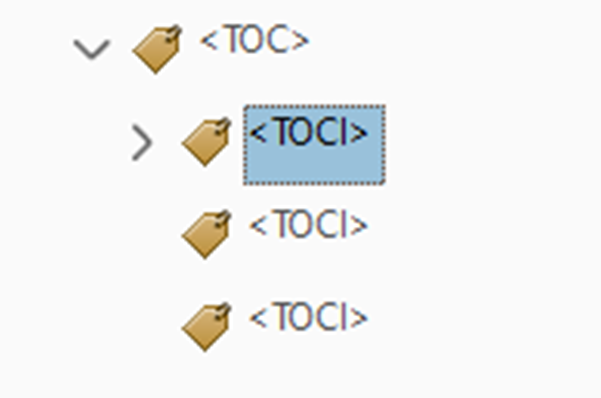
Within the TOC tag, create a Table of Contents Item (TOCI) tag for each entry:
- Right-click on the TOC tag.
- Select "New Tag" from the menu.
- Choose "TOCI" as the tag type.
- Ensure each TOCI tag is correctly nested inside the TOC tag.
Step 3: Add Content to the TOCI Tags
To add content to the TOCI tags:
- Select the desired TOCI tag in the Tags panel.
- Highlight the corresponding text in the document.
- Right-click on the empty TOCI tag.
- Choose "Create Tag from Selection" to link the text to the tag.
4. Steps to Add Links to TOC Entries
Linked TOC entries allow all users to navigate a document more easily, offering quick access to specific sections with a single click.
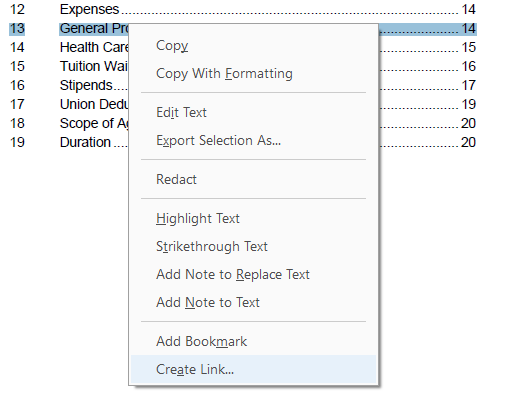
Step 4.1: Highlight the TOC Text
- Begin by highlighting the text in the Table of Contents that you want to link to its respective page.
Step 4.2: Open the Create Link Option
- Right-click the highlighted text to open the options menu, then select "Create Link."
Step 4.3: Set the Link Action
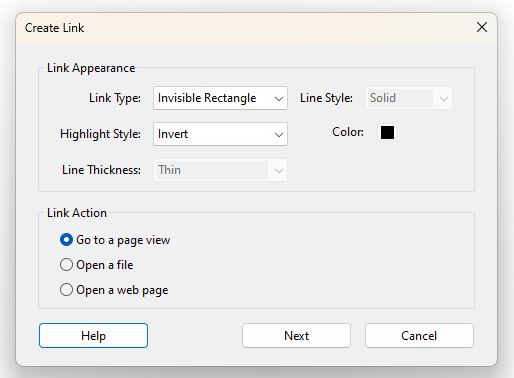
- A pop-up window will appear showing various link actions.
- Select "Go to a Page View" and click Next to proceed.
Step 4.4: Set the Link Destination
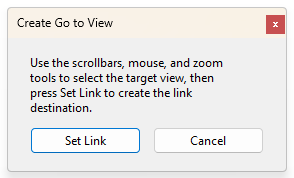
- Use the scrollbars to navigate to the section of the document that corresponds to the selected TOC entry.
- Once you’ve reached the correct page, click "Set Link" to confirm the action.
- Repeat this process for each TOC item, ensuring all entries are properly linked.
- Expand the <Link> tag, right-click, and ensure that it contains Link – OBJR.
Step 4.5: Open Link Properties
- After creating the link, right-click the linked TOC text, choose "Properties," and navigate to the "Actions" tab.
Step 4.6: Add Alternative Text
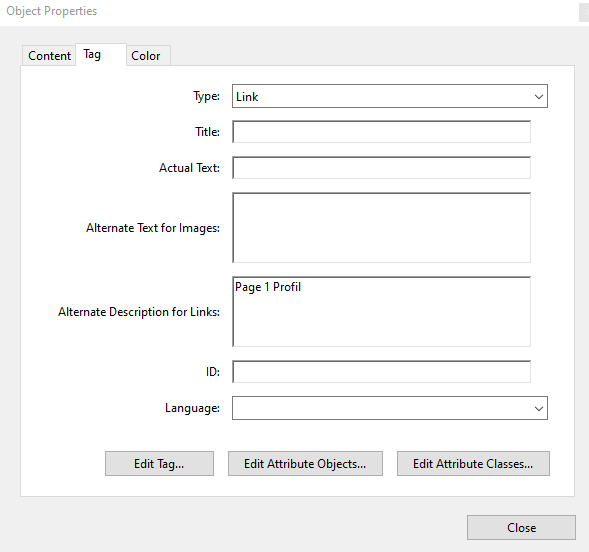
- In the Alternate Description field, add descriptive alternative text that conveys the purpose of the link (e.g., "Page 1 Profile").
- Click Close to save your changes.
Here are some best practices to keep in mind when tagging tables of contents (TOCs):
- Make sure only texts are tagged inside of the TOCI.
- All other elements should be turned to artefacts
- Ensure the alternative text is accurate, as it will be read aloud by assistive technologies.
- Do not include empty tags or placeholders in the <TOC> structure. These can confuse assistive technologies and disrupt navigation.
On this page
When properly tagged in a PDF document, a TOC should use the <TOC> (Table of Contents) and <TOCI> (Table of Contents Item) tags. This allows screen readers to recognize TOC entries as interactive elements, enabling users to jump to specific sections seamlessly. Screen readers provide shortcuts to navigate TOCs, such as listing headings or moving between TOC items for next item, for previous item in NVDA. If a TOC is not properly tagged, screen readers may treat it as plain text, reducing its usability.
Keyboard Shortcuts
- Jump to the next TOC item: Press I
- Jump to the previous TOC item: Press
Shift+I - List all headings (often linked in TOC): NVDA+F7, then select the "Headings" tab
- Follow a TOC link: Press Enter on the link
Common TOC Issues in PDFs
- If NVDA doesn’t recognize TOC navigation: The document may not have properly tagged TOC items.
- If TOC items are not clickable: The links may not be properly associated with the headings.
- If TOC is read as plain text: The TOC might be an image or untagged content.
The Table of Contents (TOC) and Table of Contents of Index (TOCI) tags must follow accessibility norms to ensure clear and efficient navigation. They should reflect the document's structure, with properly tagged and functional links, making it easier for users—especially those with disabilities—to navigate. Key norms include supporting navigation, maintaining logical structure, ensuring assistive technology compatibility, and using meaningful headings and links. These elements work together to provide a user-friendly, accessible experience by allowing quick access to sections and ensuring consistency throughout the document.
| Reference | Description | Purpose and Results |
|---|---|---|
| PDF/UA §7.17, EN 301 549 §10.1.3.1, RAPDF 7.2 | The <TOC> should serve as a navigation point using bookmarks or links. | Purpose: Enables users to efficiently locate sections within the document. Result: Improves accessibility and usability, especially for assistive technology users. |
| PDF/UA §7.17, EN 301 549 §10.1.3.1, RAPDF 7.2 | <TOC> and <TOCI> must reflect the hierarchical structure of the document. | Purpose: Ensures logical organization and ease of navigation. Result: Users and assistive technologies can interpret and use the <TOC> effectively. |
| PDF/UA §7.17, RAPDF 7.2 | The document outline (bookmarks) must reflect the logical structure of the <TOC>. | Purpose: Provides structured navigation for screen readers. Result: Users can jump to sections quickly via assistive technologies. |
| PDF/UA §7.18.3, EN 301 549 §10.1.3.1, RAPDF 4.1 | <TOC> links must be correctly tagged and programmatically recognizable. | Purpose: Allows assistive technologies to read <TOC> links properly. Result: Improves navigation and content access for users relying on keyboard or screen readers. |