


Tag
Headings
In an accessible PDF, heading tags are used to establish the document’s structure and hierarchy. They play a crucial role in organizing content, enabling both visual readers and assistive technologies, like screen readers, to navigate and understand the document effectively.
1. Purpose of Heading Tags:
- Designation of Structure: Heading tags define the hierarchy and logical structure of the document, helping to break content into manageable sections.
- Assistive Navigation: Screen readers use heading tags to allow users to jump directly to specific sections.
- Heading tags exist directly below the <Sect> (Section) tag, grouping them with the content of their respective sections.
2. Hierarchy of Heading Tags:
- Levels: The tags range from <H1> to <H6>, with <H1> being the highest (most important) level and <H6> the lowest.
- Usage:
- <H1>: Typically used for the document title or primary section heading.
- <H2>, <H3>, etc.: Used for subsections, sub-subsections, and so on.
3. Best Practices for Heading Tags:
- Use Tags in Order: Maintain a logical and sequential heading hierarchy (e.g., <H1> followed by <H2>, <H3>, etc.). Avoid skipping levels (e.g., <H1> to <H3> directly).
- Ensure Accuracy: Verify that the heading text reflects the section and importance of the content appropriately.
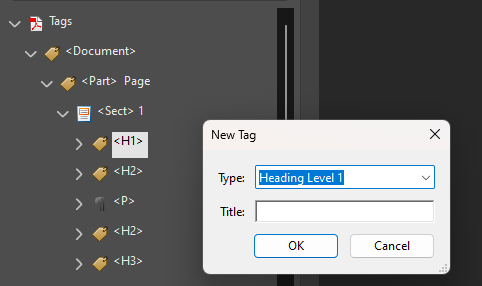
- Right-click on the Document tag
- Select “New Tag”
- Choose “Heading Level 1”
- Make sure it is nested inside the Document Tag
On this page
Properly tagged headings (<H1> to <H6>) allow screen readers to recognize the document’s hierarchy, enabling users to jump between sections efficiently. Screen readers provide shortcuts for heading navigation—for instance, in NVDA, users can press H to move to the next heading or 1-6 to navigate by specific heading levels. A well-structured heading system improves readability, accessibility, and user experience, ensuring that all users, including those with visual impairments, can access information quickly and logically.
Keyboard Shortcuts
Headings (<H1> to <H6>)
- Navigate by heading: H (next heading) / Shift+H (previous heading)
- Move to next heading at a specific level: 1-6 (e.g., 2 for H2, Shift+2 for previous H2)
- List all headings: NVDA+F7 (then select “Headings” tab)
Heading tags, such as <H1>, <H2>, and <H3>, are essential for meeting accessibility norms in PDF/UA ISO 14289-1. They ensure a clear semantic structure, maintain a logical reading order, enable navigation support, and optimize screen reader functionality. Proper use of headings ensures users can navigate and understand content efficiently while meeting the required standards for accessibility.
| Reference | Description | Purpose and Results |
|---|---|---|
| PDF/UA §7.4, EN 301 549 §10.1.3.1, RAPDF 5.1 | Headings must be tagged appropriately using <H1> , <H2>, etc., based on their hierarchy. | Purpose: Provides a clear document structure for assistive technologies. Result: Users can understand the hierarchy of content. |
| PDF/UA §7.4, EN 301 549 §10.1.3.2, RAPDF 5.1 | Heading tags must follow a logical, hierarchical order. | Purpose: Ensures readers and screen readers navigate the document correctly. Result: Smooth reading flow and clear organization. |
| PDF/UA §7.17, RAPDF 5.1 | Headings must serve as navigation points (e.g., bookmarks or table of contents). | Purpose: Helps users locate sections quickly. Result: Improves efficiency for all users, including those using assistive tools. |
| PDF/UA §7.4, EN 301 549 §10.1.3.1, RAPDF 5.1 | Properly tagged headings enable assistive technologies to skip sections or jump to key content. | Purpose: Improves accessibility and navigation for screen reader users. Result: Faster and more intuitive content access. |